
How to Embed a Smarter Chatbot in an HTML Web Page
Add a Smarter chatbot to any HTML page with one script tag from @smarter.sh/ui-chat: a chat button, an inline chat, options, styling and troubleshooting.

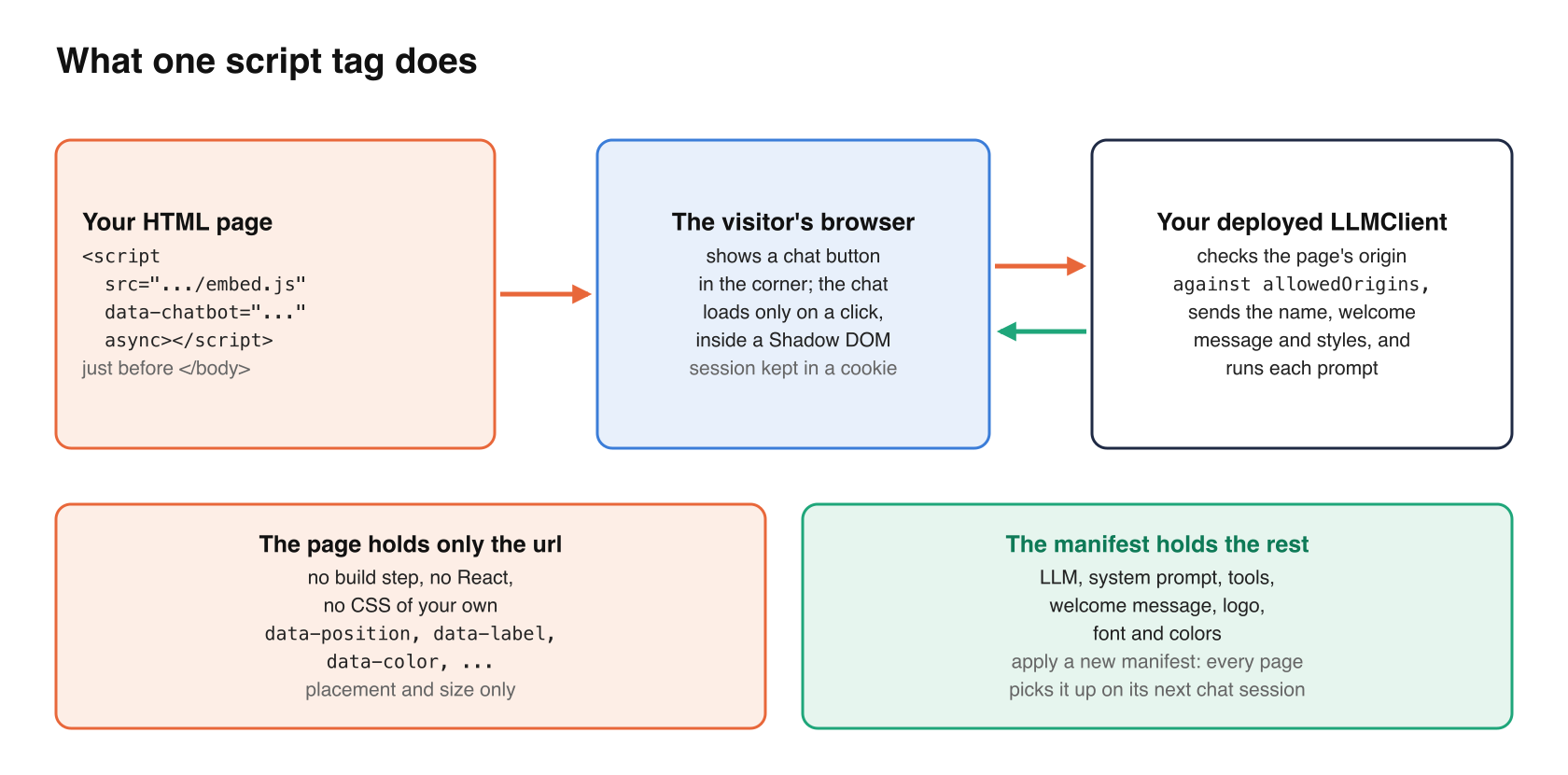
One script tag puts your Smarter chatbot on any HTML page. No build step, no React, no CSS of your own.
Smarter is a platform for building and running AI chatbots. You declare a chatbot, called an LLMClient, in a short YAML manifest that sets its LLM, system prompt, tools, welcome message and look. Smarter runs it. The npm package @smarter.sh/ui-chat is its front end, the same chat window used in the Smarter web console, published so you can put it on your own site.
By the end of this article you will have the following.
- a chat button in the corner of your page that opens your chatbot in a panel, and
- optionally, the chat placed inline in the page, for example on a Support page.
The package ships a prebuilt embed script, embed.js, that bundles React and the chat. It renders inside a Shadow DOM, so your site’s styles can’t break the chat, and the chat can’t change your site.
Before you start
You need a deployed LLMClient that allows your page’s origin. The chat calls Smarter straight from your visitors’ browsers, so Smarter has to know your site.
- Deploy the LLMClient. Set
spec.config.prompt.deployed: truein its manifest. Its url looks likehttps://<name>.<account-number>.api.<your-smarter-domain>/, or its verified custom domain. This url is the only thing the page needs. - Allow your origin. List every origin that will embed the chat (scheme, host and port must match exactly), including your local test server.
apiVersion: smarter.sh/v1
kind: LLMClient
metadata:
  name: support
  description: Customer support for example.com
  version: 1.0.0
spec:
  config:
    prompt:
      deployed: true
      provider: openai
      defaultModel: gpt-4o-mini
      defaultSystemRole: You are a friendly support agent for example.com. Answer briefly.
      appName: Example Support
      appAssistant: Sam
      appWelcomeMessage: Hi, I'm Sam. How can I help?
      appExamplePrompts:
        - How do I reset my password?
        - What is your return policy?
      allowedOrigins:
        - https://www.example.com
        - http://localhost:8000
- Apply it with
smarter apply -f llmclient.yaml. - Decide on an api key. A deployed LLMClient without api keys is public, and prompts are charged to its owner. If yours requires a key, the page must carry one, and any visitor can read it. Create a key used only for that site.
Add the chat button
Paste this tag just before </body>, with your LLMClient’s url in data-chatbot.
<script
  src="https://cdn.jsdelivr.net/npm/@smarter.sh/ui-chat@0/dist/embed.js"
  data-chatbot="https://support.3141-5926-5359.api.example.com/"
  async
></script>
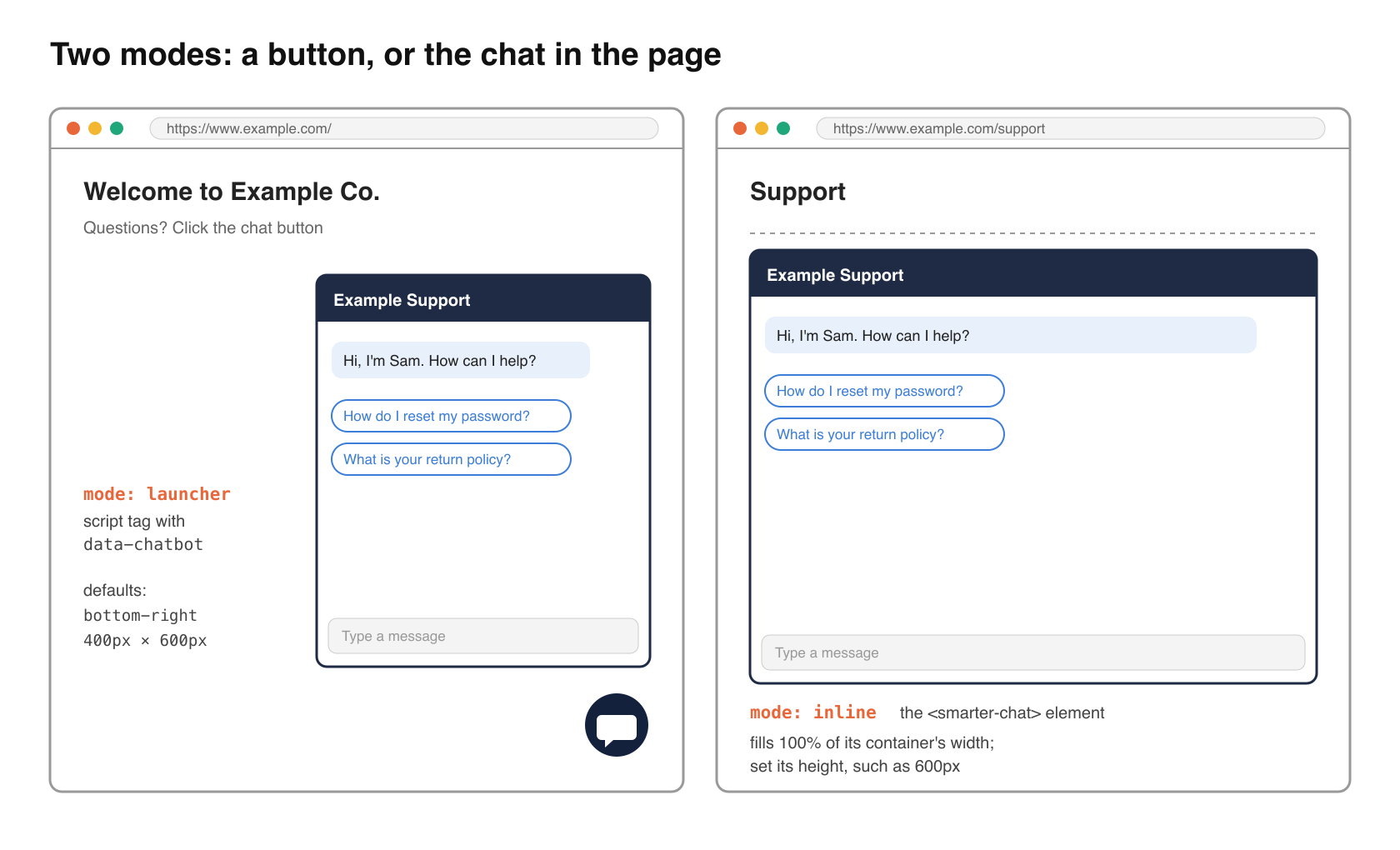
That’s the whole integration. A chat button appears in the bottom-right corner. The chat itself loads only when a visitor clicks it, so the tag costs your page almost nothing. The conversation is kept in a cookie and follows the visitor from page to page.
Here is a complete page you can save as index.html and serve locally with python3 -m http.server 8000.
<!doctype html>
<html lang="en">
  <head>
    <meta charset="utf-8" />
    <meta name="viewport" content="width=device-width, initial-scale=1" />
    <title>Example Co.</title>
  </head>
  <body>
    <h1>Welcome to Example Co.</h1>
    <p>Questions? Click the chat button in the corner.</p>

    <script
      src="https://cdn.jsdelivr.net/npm/@smarter.sh/ui-chat@0/dist/embed.js"
      data-chatbot="https://support.3141-5926-5359.api.example.com/"
      data-position="bottom-right"
      data-label="Chat with Sam"
      data-color="#14213d"
      async
    ></script>
  </body>
</html>
Open http://localhost:8000, click the button, and you should see your chatbot’s name, welcome message and example prompts, all read from its manifest.
Optionally, put the chat in the page
For a dedicated Support or Help page, place the chat inline with the <smarter-chat> element. The script tag above defines it, so load the script on that page too.
<main>
  <h1>Support</h1>
  <smarter-chat
    chatbot="https://support.3141-5926-5359.api.example.com/"
    height="600px"
  ></smarter-chat>
</main>
The element defaults to inline mode and fills 100% of its container’s width. On that page, load the script without data-chatbot, so it defines the element but adds no floating button.
<script src="https://cdn.jsdelivr.net/npm/@smarter.sh/ui-chat@0/dist/embed.js" async></script>
Options
Only chatbot is required. Each option works as an attribute on <smarter-chat>, a data- attribute on the script tag, or a camelCase property of window.SmarterChatConfig.
| Option | Default | What it does |
|---|---|---|
chatbot | (required) | The deployed LLMClient’s url |
api-key | A Smarter api key, only if the LLMClient requires one; visible in the page | |
mode | launcher (script), inline (element) | Floating button, or in the page |
position | bottom-right | bottom-right or bottom-left |
open | false | Start with the panel open |
label | Chat | The button’s accessible name |
color | #ff5733 | The button’s color |
width, height | 400px, 600px | Panel size, any css length |
language | the page’s | en, es, fr or pt-br |
target | Script and config only, a css selector to render inline into |
The full list, including z-index, cookie and debug options, is in the package README.
Customizing the chat
Change the chat’s look in the LLMClient’s manifest, not in your page. Apply a new manifest and every page that embeds the chatbot picks it up on the next chat session, with no redeploy of your site.
spec:
  config:
    styles:
      appLogoUrl: https://cdn.example.com/logo.png
      googleFont: Nunito
      borderRadius: 0.7em
      conversationHeader: { backgroundColor: "#14213d", color: "#ffffff" }
      outgoingMessage: { backgroundColor: "#fca311", color: "#14213d" }
      buttons: { color: "#fca311" }
Your page controls only placement and size (the options above). For the rest, the launcher exposes CSS parts.
smarter-chat::part(launcher) { box-shadow: 0 4px 12px rgb(0 0 0 / 0.25); }
smarter-chat::part(panel) { border-radius: 12px; }
Your own buttons can drive the launcher too.
<button onclick="SmarterChat.open()">Talk to support</button>
SmarterChat.close() and SmarterChat.toggle() also exist, and the element fires a smarter-chat-toggle event with event.detail.open.
No script attributes? Use SmarterChatConfig
Some tools, such as tag managers, add script tags for you. Set the options as a global before the script loads.
<script>
  window.SmarterChatConfig = {
    chatbot: "https://support.3141-5926-5359.api.example.com/",
    position: "bottom-left",
  };
</script>
<script src="https://cdn.jsdelivr.net/npm/@smarter.sh/ui-chat@0/dist/embed.js" async></script>
Pinning or self-hosting the script
@0 follows the latest 0.x release. To review changes before your visitors see them, pin an exact version, such as @smarter.sh/ui-chat@0.36.10. To serve the script from your own site, copy dist/embed.js and the dist/embed/ folder together (for example from npm pack @smarter.sh/ui-chat); the folder holds Mermaid and KaTeX fonts, loaded only when an answer has a diagram or math.
Building a React app instead?
Install the package (npm install @smarter.sh/ui-chat) and render the SmarterChat component directly, with react and react-dom 19 as peers.
import { SmarterChat } from "@smarter.sh/ui-chat";
import "@smarter.sh/ui-chat/dist/ui-chat.css";
import "katex/dist/katex.min.css";

export function Support() {
  return (
    <div style={{ height: 600 }}>
      <SmarterChat apiUrl="https://support.3141-5926-5359.api.example.com/" />
    </div>
  );
}
The chat fills its parent’s height, so give the parent one.
Troubleshooting
| Symptom | Likely cause and fix |
|---|---|
| No chat button appears | data-chatbot is missing or isn’t an http(s) url. Add data-debug="true" and check the browser console. |
| The chat says it isn’t available, or the console shows “blocked by CORS policy” | Your page’s origin isn’t in allowedOrigins. Scheme, host and port must match exactly, so http://localhost:8000 and http://127.0.0.1:8000 are different origins. Re-apply the manifest. |
| 401 or 403 errors | The LLMClient requires an api key. Add data-api-key, using a key made for this site. |
| The chat is a thin strip | An inline chat fills its height. Set height on <smarter-chat>. |
| Equations show as plain text (React only) | Import katex/dist/katex.min.css. The embed script handles this itself. |
Next steps
- Read the full guide, Embedding Smarter Chat.
- Style every part of the chat with Styling Your LLMClient’s Chat.
- Give the chatbot tools with Plugins and keep it safe with Guardrails.
- On WordPress? See the companion article, How to Add a Smarter Chatbot to Your WordPress Site.
Sources
- @smarter.sh/ui-chat on npm (version 0.36.10)
- Smarter Chat documentation