
Getting Started With The SmarterChat React Component

SmarterChat is the React-based UI for an LLMClient. Its source lives in the smarter-sh/smarter-console repository, alongside the rest of Smarter’s web console, but it’s packaged separately and has its own version history on npm, as @smarter.sh/ui-chat. You declare a chatbot in a YAML manifest, and SmarterChat turns that declaration into the chat window people actually use. Behind it, every prompt goes to Smarter’s runtime, which handles the hard part. It resolves the manifest’s plugins, MCP servers and guardrails into a request that the LLM provider’s API will accept, orchestrates multi-step tool calls, checks budgets before anything is charged, and logs every step along the way. The runtime is asynchronous, and streams its interim steps as Server-Sent Events, so SmarterChat shows the prompt engineer each one as it arrives, while your users see a bit of playful banter instead. Either way, a long prompt never looks frozen, and all that’s left for you, the developer, is the styling.
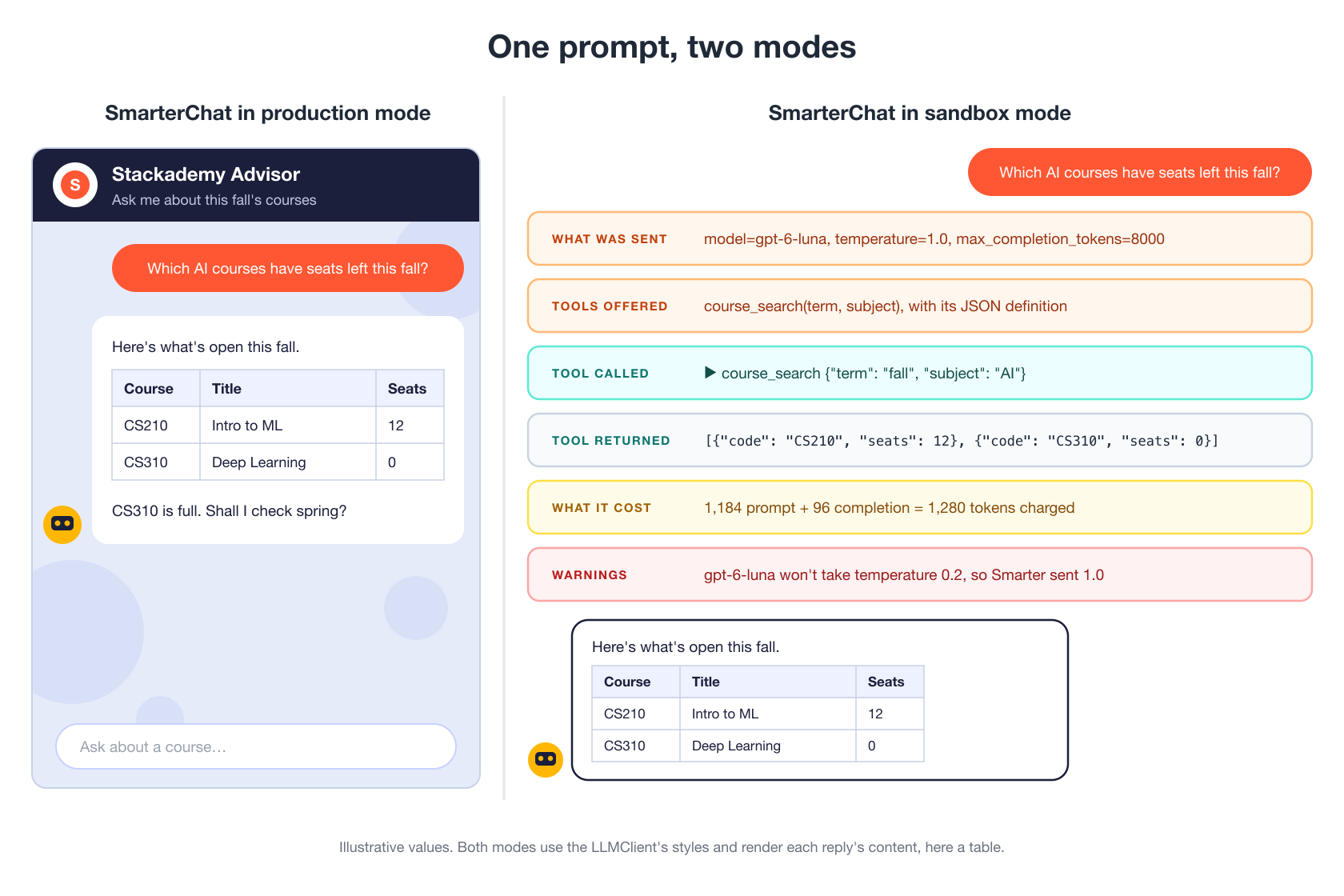
SmarterChat runs in two modes, and a switch in its header moves between them at any time. Production mode is for your users, and shows only the conversation, in your LLMClient’s styles. Sandbox mode is for the prompt engineer, and you’ll normally use it in the workbench of Smarter’s web console, where it opens the Console beside the chat. Together they give you these tools.
- The thread of execution. Alongside the conversation, a bubble for each step that Smarter and the LLM took to produce an answer, including the tool calls, their results, the cost and any warnings.
- The provider request. A download of the conversation as the exact JSON request body that Smarter sends to the LLM provider, ready for curl or the Prompt Passthrough.
- Server logs. The Smarter server’s log messages for your chat session, at DEBUG level, streaming in as they happen.
- Config. The complete configuration that the chat received from Smarter, as a JSON tree that you can expand and collapse.
- Tool calls. Every tool call of the chat session, as JSON.
- Manifest. The LLMClient’s manifest, in an editor. Save a change, and the chat reloads its configuration right away.
- Architecture. An interactive graph of every Smarter resource that the LLMClient depends on, such as its plugins, secrets and API key. Click a resource to open its manifest.
- Deployment. How to deploy the LLMClient to production at its own URL, put its chat on a web site, and secure it with an API key.
- Help. A guided tour of the workbench, and links to the technical references.
In either mode, a diagram, an SVG graphic or a long code block flips between its rendered form and its source with one click, and images, diagrams, audio, video and manifests each have a download button. Production mode hides everything in the list above, so the switch shows you exactly what your users will see, and one more click takes you back to debugging. Sandbox mode is what makes SmarterChat the heart of Smarter’s prompt engineering workbench.
SmarterChat isn’t tied to the workbench. It’s a React component, published on npm as @smarter.sh/ui-chat, so you can bundle it into your own application and ship it as a production chatbot. The Smarter Project has already done this for several ecosystems. SmarterChat is the chat in Smarter’s plugin for WordPress, its module for Drupal, its app for Shopify, its Google Tag Manager template, and its plugins for the documentation site generators Docusaurus, MkDocs, Sphinx and VitePress.
Whatever you’re building, SmarterChat connects to the Smarter backend the same way. There’s no glue code to write between your page and your LLMClient, and the chatbot your users talk to is the same one you tuned in the workbench, with the same styles and the same rendering.
This post is about the workbench side, because building an LLM application is mostly debugging. The model calls a tool with arguments you didn’t expect, a tool returns JSON wrapped in a string wrapped in more JSON, a reasoning model spends its whole token budget thinking and returns nothing, or the provider answers with a 400 about a parameter you didn’t know was off limits. Here’s how SmarterChat helps with each of those.
Following a prompt, step by step
Send a prompt to an LLMClient that has a plugin, and sandbox mode shows the whole thread of execution, in order. It starts with the configuration Smarter sent and the tools it offered the model, then each tool call and its result, then the answer, what it cost and any warnings. While the prompt runs, each step appears as it happens, so a slow prompt is no longer a mystery about where it’s stuck.
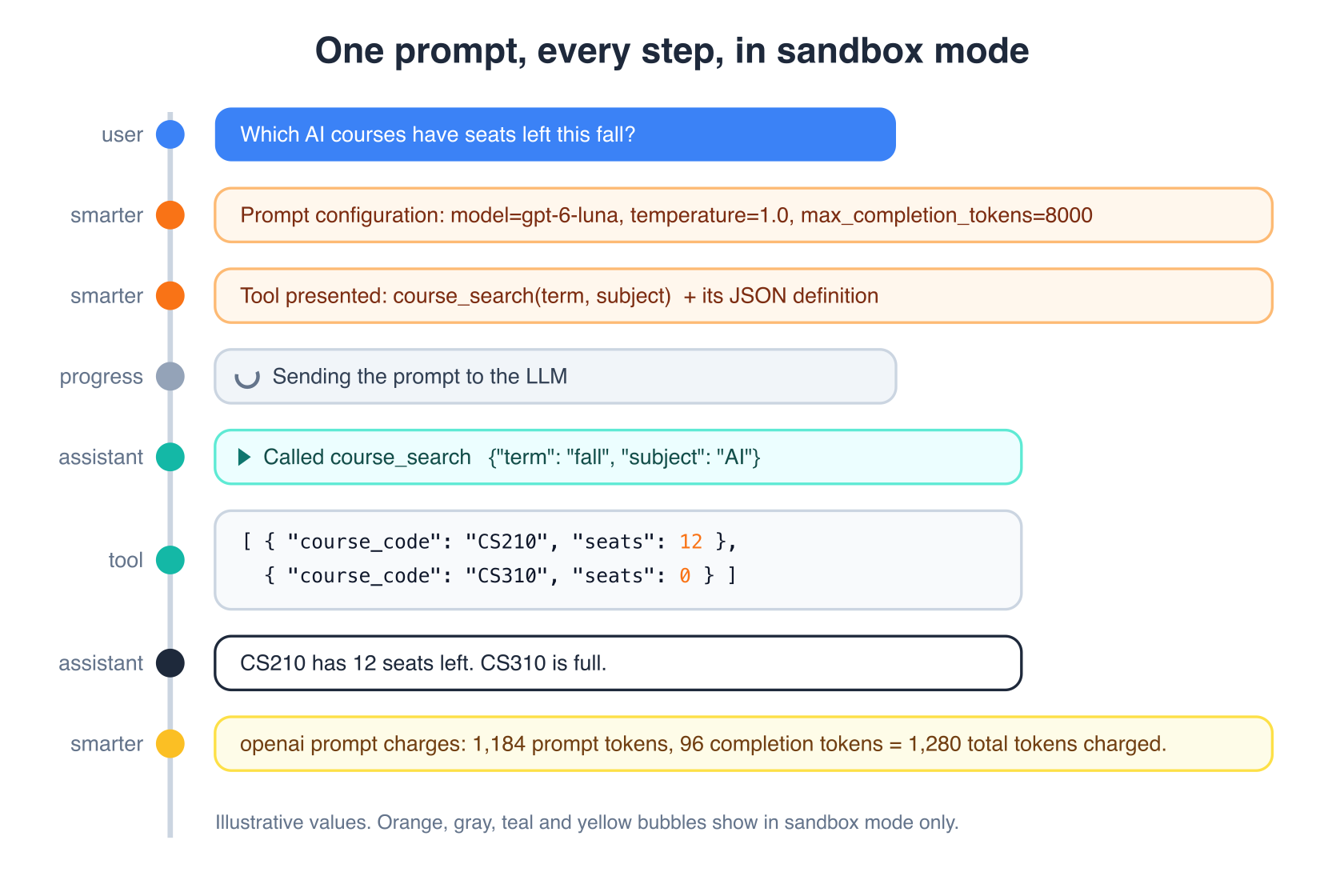
Most debugging questions are answered right here. If the model didn’t call your tool, the first question is whether it was offered, and with which description. If it did call the tool and the answer is still wrong, the arguments the model chose and the shape the tool returned are usually the whole story.
If tool calling is new to you, LLM Tool Calls Explained covers what a tool call is and why a model needs one to answer questions about data that changes, and uses Smarter to show each call as it happens.
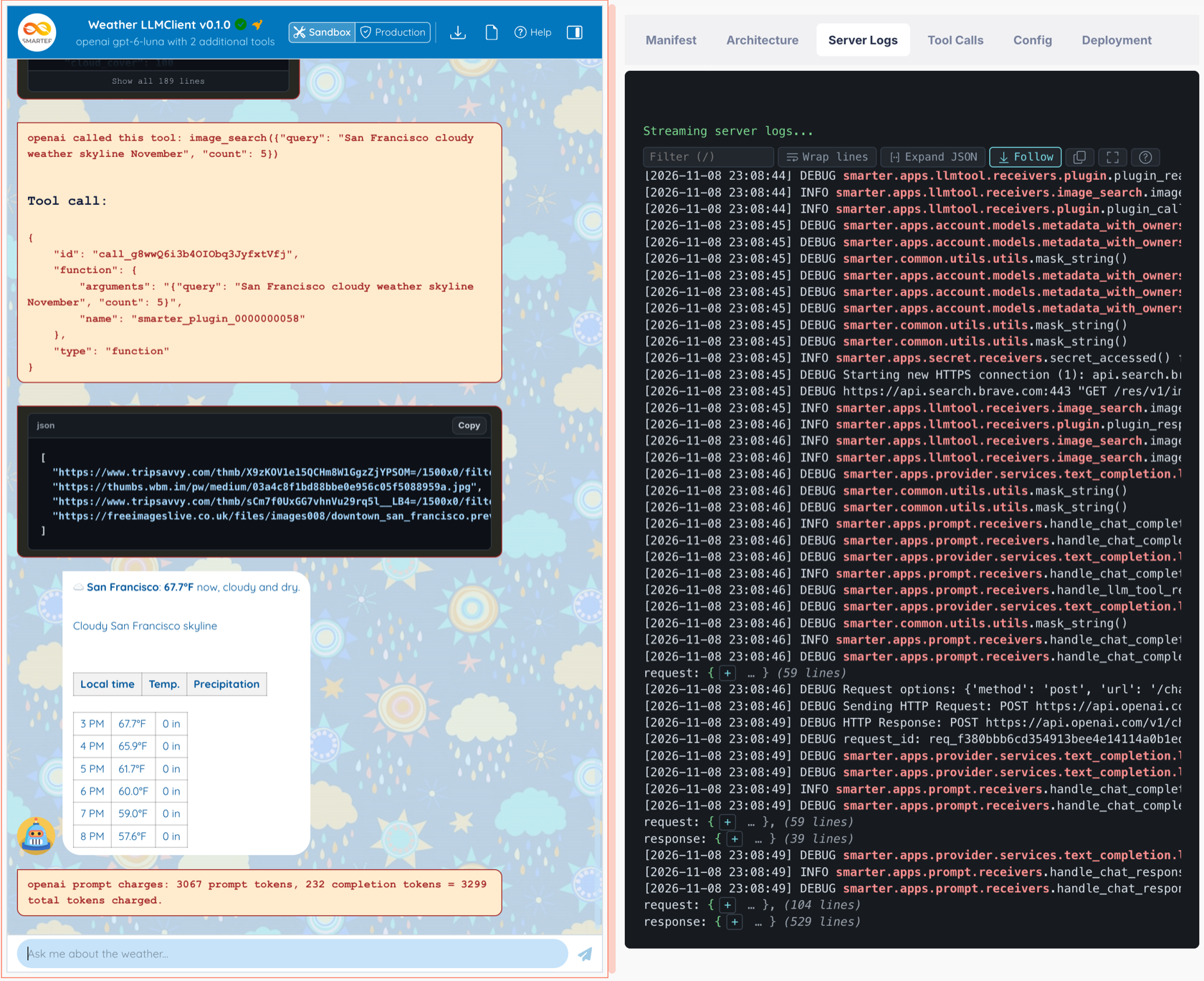
Many prompts take more than one step. The model calls a tool, reads what came back, and uses it to decide what to call next. Ask the weather LLMClient for the forecast in San Francisco with a photo, and it calls the weather tool first, then searches for an image of the place with weather conditions that are consistent with the forecast (rain, sunny, cloudy, etcetera). A chain of MCP tool calls works the same way, each call built on the last one’s result. Smarter keeps the loop going, sending each round of results back to the LLM and running whatever it calls next, until the model has what it needs to answer. A platform setting, SMARTER_MAX_TOOL_ROUNDS, caps the chain at five rounds by default, after which the model gets the results without its tools and answers with what it has. Sandbox mode shows every round in order, each with its own tool calls, results and cost, so when a chain goes wrong you can see which step took it there.
Here a weather LLMClient is asked about San Francisco. The thread shows its call to the ImageSearchPlugin with the arguments, what the tool returned, and the answer, while the Console’s Server Logs tab follows the same prompt through the server.
When the answer is empty
Reasoning models can spend their entire completion budget thinking and return no text. SmarterChat notices when a response stopped because it hit its limit, and says so in plain words, e.g. “The LLM reached this LLMClient’s max tokens of 256 completion tokens, 256 of which it spent reasoning, so its response is empty. Raise defaultMaxTokens in the LLMClient’s manifest.” That message has saved me from more than one round of staring at a blank bubble and blaming the prompt. 😬
Handling complex media types
To see everything SmarterChat recognizes, talk to smarter_chat_demo, an LLMClient in Smarter’s example manifests whose only job is to show off. Each of its twelve example prompts exercises one kind of content, from an animated SVG rocket and a mermaid flowchart to typeset math, a CSV table, an LLMClient manifest, and audio and video players. Its image search needs a Brave Search API key in a Smarter Secret named brave_search_api_key.
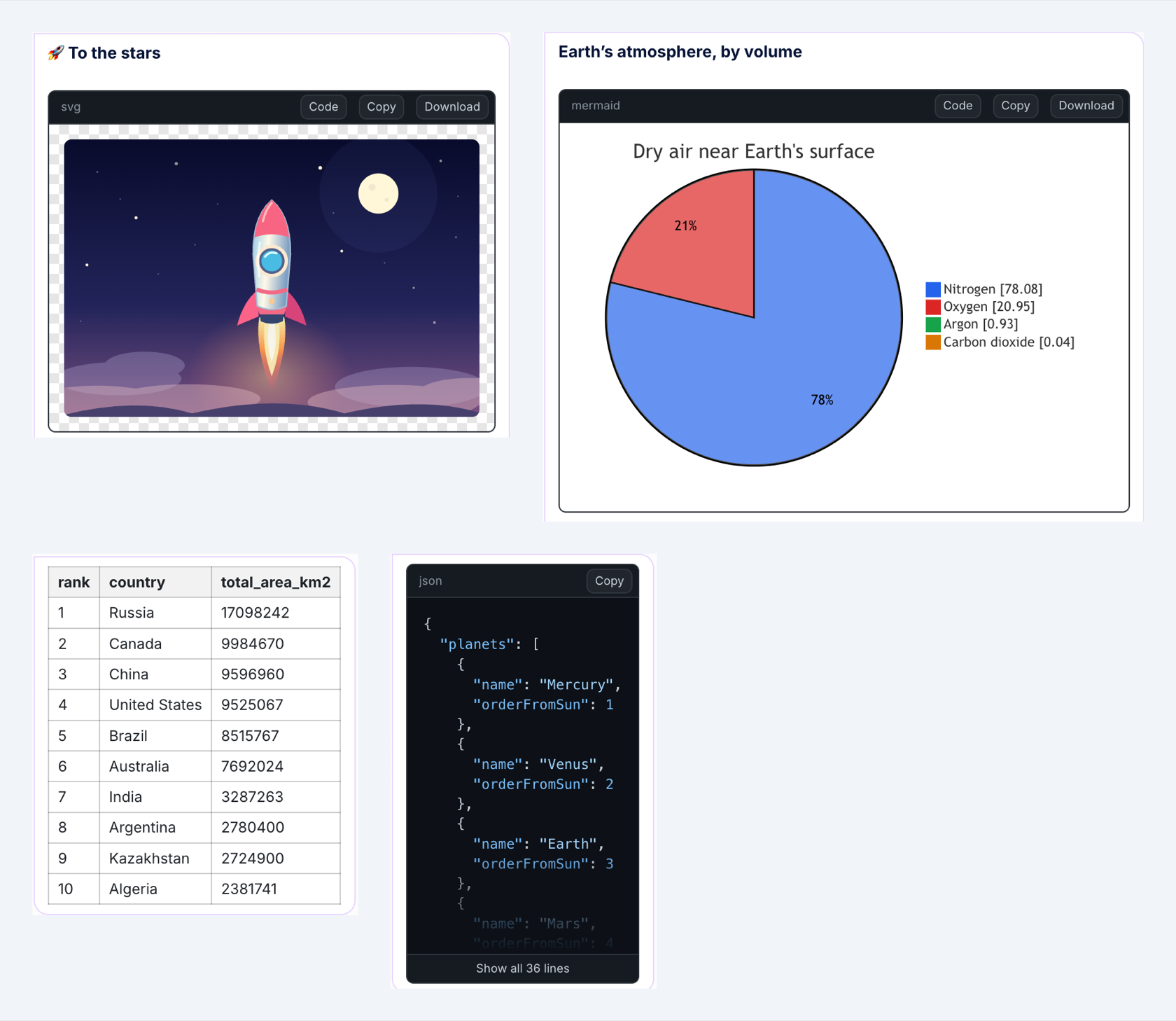
The detectors are strict on purpose. A reply is shown as JSON or as a table only when it is nothing but JSON or CSV, so “Here it is.” in front of either leaves the text as written. And “$5 or $10” stays a price rather than turning into math.
One detector earns its keep with tools. Many return their result as a JSON string, so the tool message holds JSON, escaped, inside a string, inside the message list’s own JSON.
{
  "role": "tool",
  "name": "course_search",
  "content": "{\"course_code\": \"CS210\", \"seats\": 12}"
}
Read that a few hundred times in a log and you start to see backslashes in your sleep. SmarterChat unwraps exactly one level of string and pretty prints what it finds.
Analyzing complex prompt behavior
Some problems can’t be solved by reading the chat. You need to change one thing in the request and send it again, and again. That’s what the Prompt Passthrough is for. It’s a page in the web console that sends a raw, OpenAI-compatible request to any provider on your platform, and shows the response, the tokens and the server’s log. Sandbox mode’s download button gets a real conversation into it, as the exact JSON request that Smarter sends to the provider, minus the provider’s URL and API key.
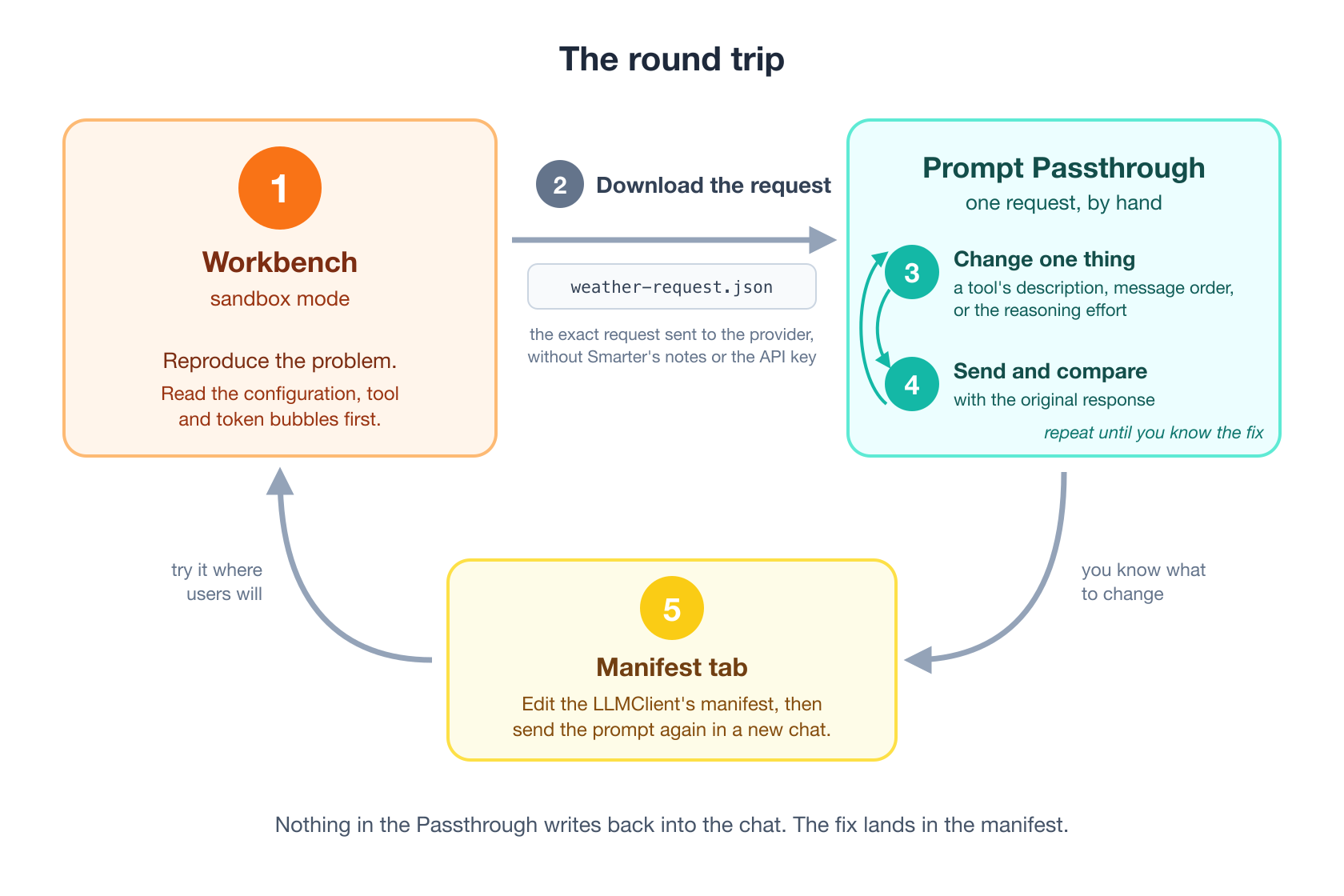
The download is also a request the provider will accept. OpenAI answers with a 400 when a tool message doesn’t answer a tool call in the assistant message right before it, and long threads with several rounds of tool calls break that rule easily. Smarter repairs the thread before every request, in pair_tool_messages() in utils.py, and the download gets the same repair. The Passthrough sends your edits exactly as written, which is how you find out which orderings a model will tolerate.
Mitigating LLM vendors’ convoluted business rules
Newer models come with rules about which settings they’ll accept, and the rules differ from model to model, sometimes from one dated snapshot to the next. Smarter v0.44.3 ran a survey of OpenAI’s chat completions API, with 27 models and 10 request shapes each, and recorded the results in a table in model_capabilities.py. Here are some of what it found, as of November 8, 2026.
- gpt-6.1-sol and gpt-6-astra can’t use function tools in
/v1/chat/completionsat all. They accept tools only at reasoning effortnone, and they don’t supportnone. - gpt-5-search-api rejects any temperature and any tools.
- chat-latest accepts only
reasoning_effort: medium, and only its default temperature. - Every reasoning model accepts only a temperature of 1.0 while it reasons. gpt-5.5, gpt-5.6 and gpt-6 accept another temperature only at effort
none.
None of this is documented in one place by the vendor, and none of it is something a prompt engineer should have to memorize. So Smarter applies it for you, in three places.
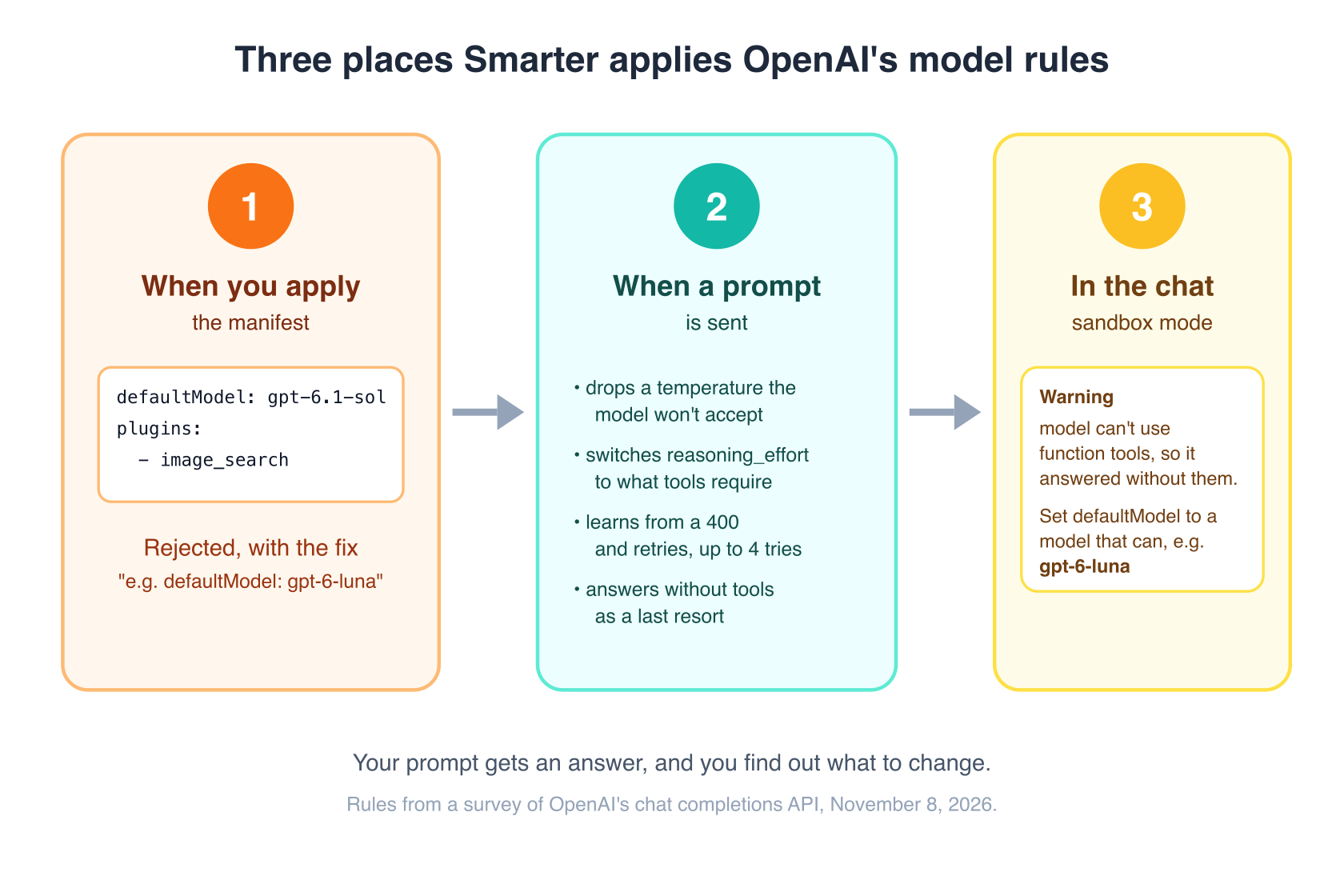
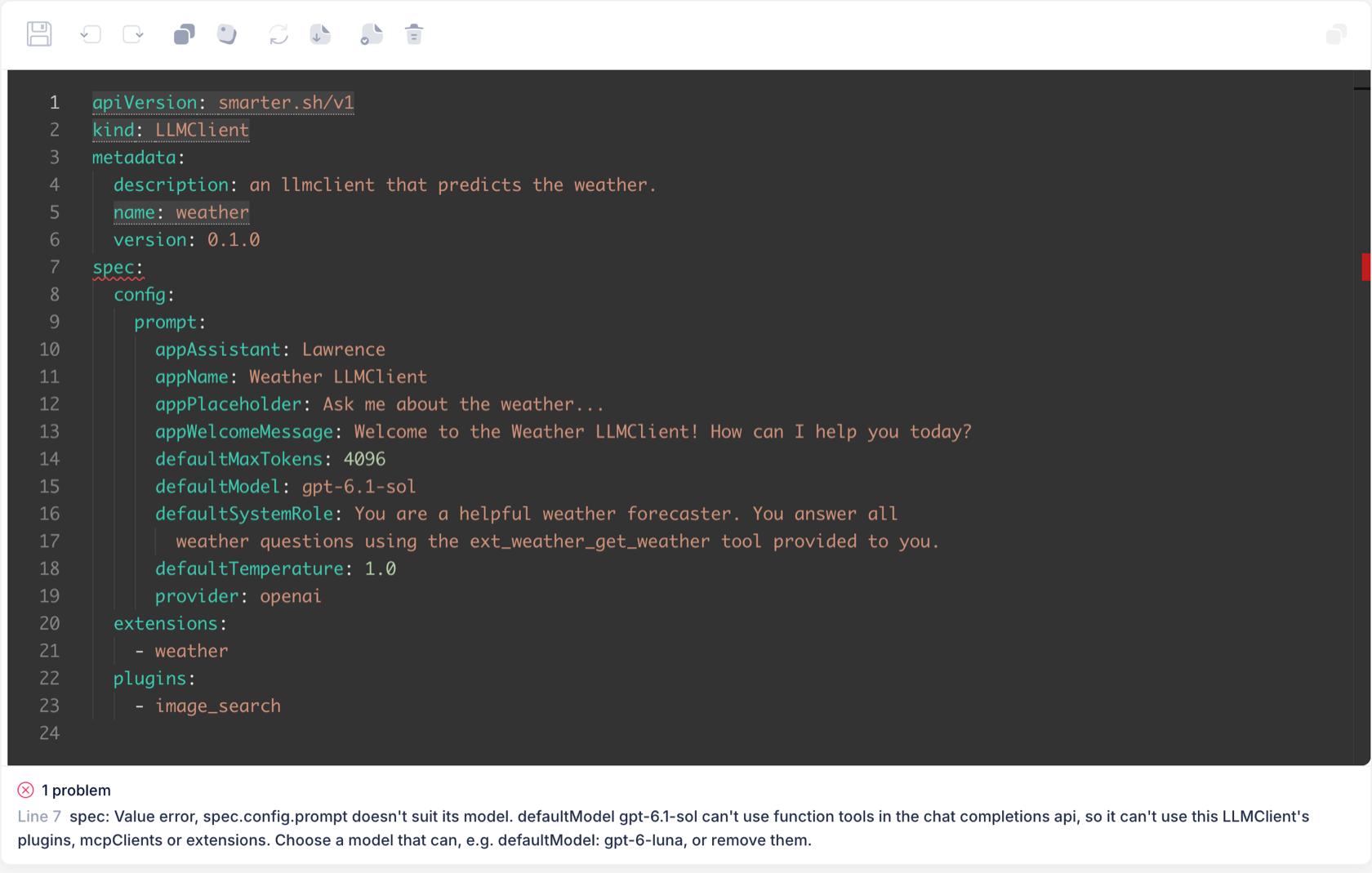
When you apply a manifest, Smarter rejects one whose model can never honor its settings, and the message names a model that can. The web console’s manifest editor checks as you type, so you find out before you apply it.
When a prompt is sent, Smarter adjusts the request to fit the model. If the provider still rejects it, Smarter reads which parameter the error names, remembers it for that model, and tries again. Then, in the chat, sandbox mode tells you what it changed, and proposes a configuration that avoids the change.
Warning: model gpt-6.1-sol can't use function tools in /v1/chat/completions, so it
answered without these tools: … To use them, set spec.config.prompt.defaultModel to
a model that can, e.g. defaultModel: gpt-6-luna.
Your users get an answer, and you get a to-do list. When a prompt does fail, the error bubble shows the provider’s own message, not a Python stack trace.
Closing thoughts
Prompt engineering without visibility is guesswork. SmarterChat’s job in the workbench is to show the request, every step and every cost, and to display each result as what it is. The vendor rules will keep changing, which is why Smarter learns from each rejection as well as reading its table, and tells you what it did about them.
- Smarter on GitHub
- smarter-console on GitHub, and SmarterChat on npm as @smarter.sh/ui-chat
- SmarterChat features and its API contract
- The Prompt Passthrough
- The smarter_chat_demo manifest
- The Smarter blog