
How to Build a Smarter Extension in Python With Cookiecutter

This tutorial builds a Smarter Extension, a small Python package that gives AI chatbots a new tool, using Cookiecutter and the official Smarter Extension template. You don’t need to know much Python. If you can open a terminal, run a command and edit a text file, you can follow along, one small step at a time.
We’ll build an extension called Reading Time. It gives an LLM a tool that counts the words of a text and says how many minutes it takes to read. LLMs are famously unreliable at counting words, because they see text as tokens, not words, so this is a job for a few lines of ordinary Python. By the end, your tool will pass its tests, Smarter will have checked that it can install it, and you’ll know how to release it so that any Smarter platform can use it.
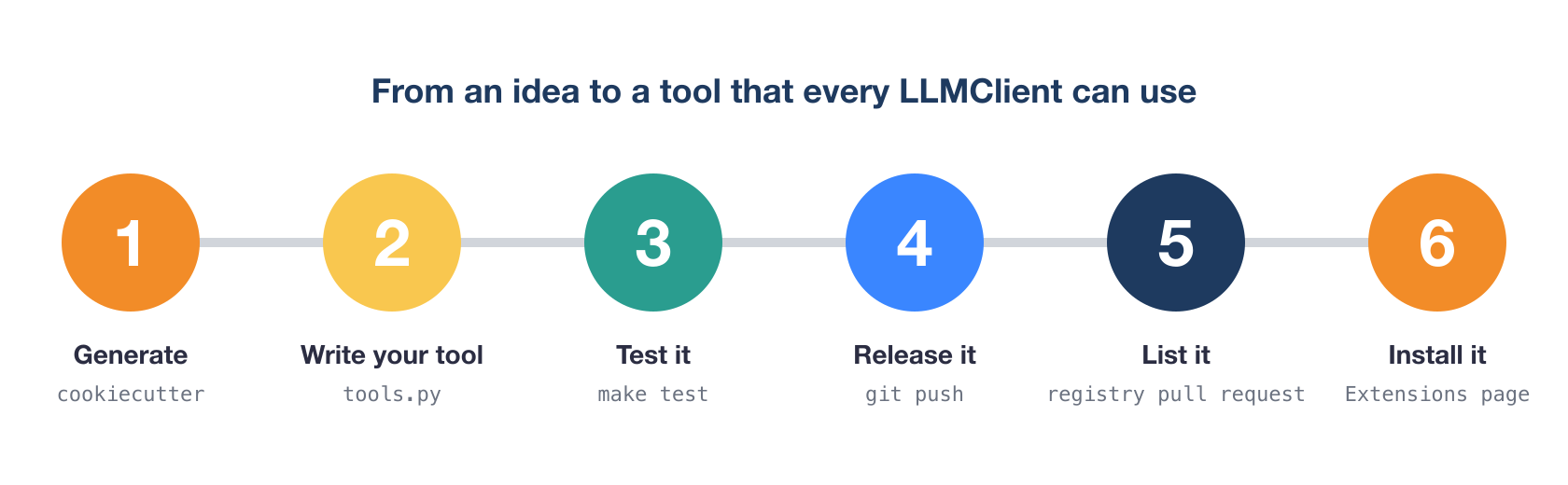
What is a Smarter Extension?
Smarter is an open-source platform for building and running LLM applications. Its chatbots are called LLMClients. An LLM on its own can only write text. To look something up, do arithmetic or count words reliably, it asks for a tool, and the application runs the tool and hands back the result. This is often called function calling.
A Smarter Extension is a Python package that adds tools to every LLMClient on a Smarter platform that installs it. You write the tool as one Python class. Smarter does everything else. It describes your tool to the LLM, checks the arguments that the LLM sends, runs your code with a time limit, and passes the result back.
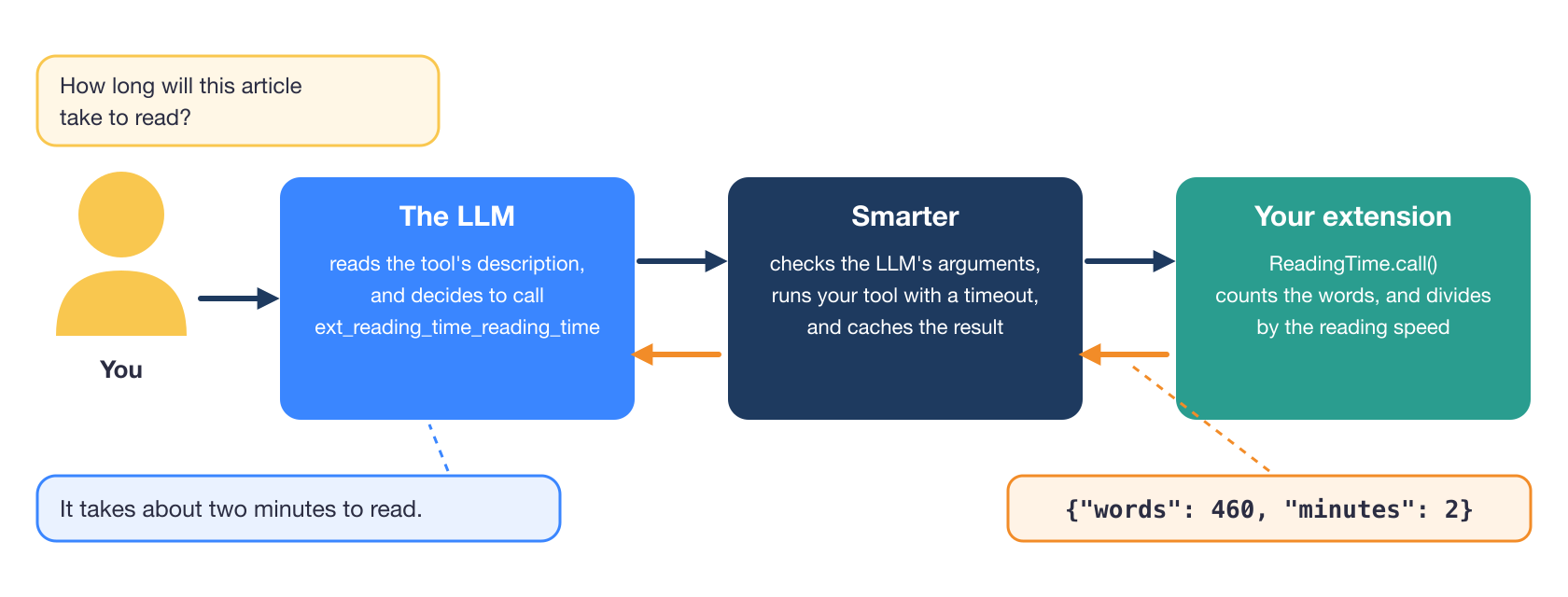
The official extensions, weather, calculator and date-calculator, are good examples of what a finished one looks like.
What is Cookiecutter, and what problem does it solve?

A new software project is mostly boilerplate. The Reading Time extension ends up with about 40 files, and only a handful of them are really about reading time. The rest are a project file, tests, a Makefile, lint settings, release scripts, GitHub workflows, a license, a README and so on. They’re the same in every extension, except for the names inside them.
The usual way to start is to copy an existing project and rename things. That’s slow, and it goes wrong quietly. Miss one weather in one file, and you find out weeks later, when something breaks in a way that makes no sense.
Cookiecutter solves exactly that problem. It’s a popular open-source command-line tool, written in Python, that creates a project from a template. A Cookiecutter template is a folder that looks like a finished project, except that wherever a name belongs, it has a placeholder in double curly braces, like {{ cookiecutter.extension_slug }}. Even folder and file names can be placeholders.
When you run Cookiecutter, it reads the template’s list of questions (a file named cookiecutter.json), asks you each one, and then copies the whole template, replacing every placeholder with your answer. Here is one line of the Smarter Extension template’s pyproject.toml, before and after.
slug = "{{ cookiecutter.extension_slug }}"     # in the template
slug = "reading-time"                          # in your new project
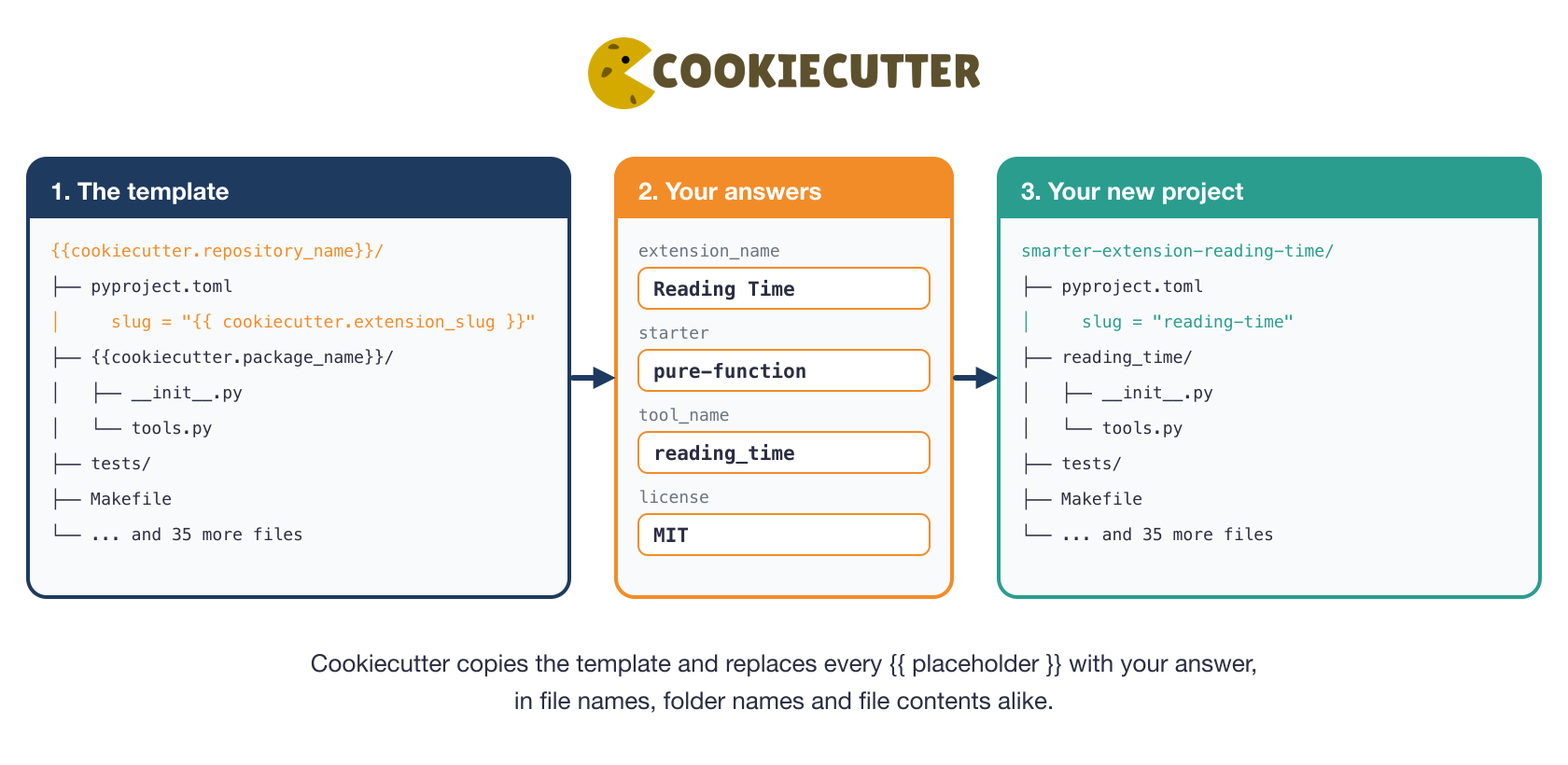
The name comes from the kitchen. A cookie cutter stamps out the same shape every time, whatever dough you press it into. A project template does the same for code. Every extension made from it has the same proven shape, and you supply the dough.
Cookiecutter templates can also run small scripts before and after they generate a project. The Smarter template uses them to check your answers with the same rules Smarter applies when it loads an extension, and to remove the files your choices don’t need.
Before you start
You need four things on your computer.
- Python 3.12 or newer. Run
python3 --versionin a terminal to check. If it’s older, or missing, install it from python.org. - git, to keep track of your changes. Run
git --versionto check. - Docker Desktop, from docker.com. The tests run inside Docker, for a reason explained in step 5.
- A Smarter development environment. An extension runs inside Smarter, so its tests need Smarter’s code. Clone Smarter and start it, following its README. The short version is below. The first
make inittakes a while, because it downloads Smarter’s Docker images.
git clone https://github.com/smarter-sh/smarter
cd smarter
make init
make run
make run keeps running and shows Smarter’s logs. Leave that terminal open, and open a new one for the rest of this tutorial. When http://localhost:9357 opens in your browser, Smarter is up.
Step 1. Install Cookiecutter
Cookiecutter is a Python program that you run from the terminal. The tidiest way to install a command-line tool written in Python is pipx, which gives each tool its own private set of Python packages, so that tools never interfere with each other or with your projects.
On a Mac with Homebrew, install pipx with brew install pipx. On Windows and Linux, follow pipx’s installation instructions. Then install Cookiecutter.
pipx ensurepath
pipx install cookiecutter
pipx ensurepath makes sure your terminal can find the programs that pipx installs. Close the terminal, open a new one, and check that Cookiecutter works.
cookiecutter --version
It prints its version, such as Cookiecutter 2.7.1.
Step 2. Generate your extension
Go to the folder where you keep your projects, the one that holds your smarter clone, and run Cookiecutter with the Smarter Extension template.
cd ~/projects
cookiecutter gh:smarter-sh/smarter-extension-cookiecutter
gh:smarter-sh/smarter-extension-cookiecutter is Cookiecutter’s shorthand for a template on GitHub. Cookiecutter downloads it and starts asking questions. Each question shows its default in parentheses. Press Enter to accept the default, or type your own answer. Here is the whole conversation for Reading Time, with my answers typed after each question. Use your own name, email and GitHub account.
[1/16] The extension's name, shown to administrators (display-name) (My Extension): Reading Time
[2/16] Its slug: permanent, lowercase words separated by hyphens, at most 32 characters (reading-time):
[3/16] Its Python package (reading_time):
[4/16] Its GitHub repository (smarter-extension-reading-time):
[5/16] One line on what it gives LLMs (What the extension gives LLMs, in one line.): Estimates how long a text takes to read.
[6/16] Which starter tool?
  1 - web-api: calls a third-party HTTP API, with an api_key secret setting and an api_url setting
  2 - pure-function: computes its result in Python, with no settings
  Choose from [1/2] (1): 2
[7/16] The tool's name (the LLM sees ext_<slug>_<name>): letters, digits and underscores (reading_time):
[8/16] The tool's Python class (ReadingTime):
[9/16] Seconds to cache the tool's results (0 = never; only for a tool that changes nothing and answers the same whoever asks) (0): 3600
[10/16] Seconds that a tool call may run (1 to 300) (30):
[11/16] The Smarter versions it works with (>=0.27):
[12/16] Your name (Your Name): Ada Lovelace
[13/16] Your email (you@example.com): ada@example.com
[14/16] The GitHub user or organization that will own the repository (your-github-account): ada-lovelace
[15/16] Your publisher id in the Smarter Extension registry (ada-lovelace):
[16/16] License
  1 - AGPL-3.0, Smarter's own license
  2 - MIT
  3 - Apache-2.0
  Choose from [1/2/3] (1): 2
Notice how the defaults follow from your first answer. Type “Reading Time” once, and Cookiecutter suggests reading-time, reading_time, smarter-extension-reading-time and ReadingTime for you. A few answers deserve a moment’s thought.
| Question | What it means |
|---|---|
| Slug | The permanent identifier that LLMClients use to list your extension. It can never change, so choose it with care. |
| Starter | web-api starts you with a tool that calls another company’s API. pure-function starts you with a tool that does its work in Python. Reading Time only counts words, so it’s pure-function. |
| Tool’s name | The name the LLM sees, with ext_ and the slug in front, here ext_reading_time_reading_time. |
| Cache | How long Smarter may reuse a result instead of calling your tool again. The same text always takes the same time to read, so an hour (3600 seconds) is safe. |
| License | The terms under which other people may use your code. MIT is short and permissive. AGPL-3.0 is Smarter’s own. |
If an answer would make an extension that Smarter refuses, such as a slug with capital letters or a time limit of 600 seconds, Cookiecutter stops and tells you which answer to fix. Run the command again and answer differently.
When it’s done, it prints your next steps.
Created smarter-extension-reading-time.

Next steps:
  cd smarter-extension-reading-time
  git init -b main && git add . && git commit -m "feat: initial commit"
  make init      # a Python virtual environment, and the pre-commit hooks
  make test      # the tests, in a running Smarter development container (smarter-app)

Then replace the starter tool with yours: see README.md, and CLAUDE.md if you use a coding agent.
Step 3. Look around
Open the new smarter-extension-reading-time folder in your editor. Here are the parts you’ll work with. Everything else is there so that testing, linting and releasing just work, and you can leave it alone.
smarter-extension-reading-time/
├── pyproject.toml          the extension's name, tools and settings
├── reading_time/
│   ├── __init__.py         the documentation that administrators read
│   └── tools.py            your tool
├── tests/
│   └── test_tools.py       your tool's tests
├── Makefile                shortcuts: make init, make test, make validate
└── README.md
pyproject.toml is the standard file that describes a Python project. Its [tool.smarter] section is where Smarter learns your extension’s slug, its display name and which classes are its tools. Cookiecutter has already filled it in.
[tool.smarter]
slug = "reading-time"
package = "reading_time"
display-name = "Reading Time"
requires-smarter = ">=0.27"
tools = ["reading_time.tools:ReadingTime"]
timeout = 30
Step 4. Save a first version with git
Run the commands that Cookiecutter printed, one at a time.
cd smarter-extension-reading-time
git init -b main
git add .
git commit -m "feat: initial commit"
This creates a git repository and records every file as your first commit. The feat: at the start of the message isn’t decoration. The template uses conventional commits, and later, when you release, a feat: commit tells the release workflow that this is a new feature, and a fix: that it’s a bug fix. It works out the version number from them.
Step 5. Set up the project and run its tests
make init
make runs a recipe from the Makefile. init creates a virtual environment, a private folder of Python packages just for this project, in venv/, and installs the pre-commit hooks, which check your code’s formatting every time you commit. When it finishes, activate the virtual environment, so that this terminal uses it.
source venv/bin/activate
Now run the starter’s tests. Smarter must be running, from the “Before you start” section.
make test
The tests import Smarter’s own code, the same code that will run your tool on a real platform. Rather than install all of Smarter on your computer, make test copies your extension into Smarter’s smarter-app Docker container and runs the tests there. That’s why you needed Docker and a Smarter development environment.
The starter comes with six tests, and they all pass, with 100% coverage, which means every line of the tool ran during the tests. You haven’t written any code yet, and you already have a working, tested extension. 🤩
Step 6. Read the starter tool
Open reading_time/tools.py. The pure-function starter is a real tool that counts the words, characters and lines of a text, with your names already in place. It’s short, so let’s read all of it.
"""The Reading Time extension's tools."""

from pydantic import BaseModel, Field, JsonValue
from smarter.apps.llmtool.extension import ExtensionContext, ExtensionToolError, SmarterExtensionTool

MAX_CHARACTERS = 100_000
"""The longest text accepted, so that one call can't hold a platform worker for long."""


class ReadingTimeArguments(BaseModel):
    """The arguments of the reading_time tool."""

    text: str = Field(..., description="The text to count the words, characters and lines of.")


# The class docstring is the tool's description for the LLM, which decides from it when to call the
# tool. Keep it to what the tool does, for the LLM, not for developers.
class ReadingTime(SmarterExtensionTool):
    """Estimates how long a text takes to read."""

    name = "reading_time"
    """The tool's name. The LLM sees it as ``ext_reading_time_reading_time``."""
    arguments_model = ReadingTimeArguments
    """The arguments the LLM must give. Smarter validates them, and offers their JSON schema to the LLM."""
    cache_ttl = 3600
    """The same text always has the same counts, whoever asks."""

    def call(self, arguments: ReadingTimeArguments, context: ExtensionContext) -> JsonValue:
        """
        Count the words, characters and lines of the text.

        :param arguments: The LLM's arguments, validated.
        :param context: The call's context. This tool doesn't use it.
        :returns: The counts, as JSON.
        :raises ExtensionToolError: when the text is longer than ``MAX_CHARACTERS``.
        """
        text = arguments.text
        if len(text) > MAX_CHARACTERS:
            raise ExtensionToolError(f"The text is too long: at most {MAX_CHARACTERS} characters.")
        return {"words": len(text.split()), "characters": len(text), "lines": len(text.splitlines())}
Here is what each part does.
- The text in triple quotes under each name is a docstring, Python’s way of documenting code. Two of them matter more than usual here. The docstring of the
ReadingTimeclass is the description that the LLM reads to decide when to use your tool, and it’s the one-line description you typed in step 2. ReadingTimeArgumentslists the arguments that the LLM must send. It’s a Pydantic model, a class whose fields have types (text: strmeans “text is a string”). Smarter turns it into the description of the arguments that the LLM sees, and rejects a call whose arguments don’t fit. Each field’sdescriptionis written for the LLM too.name,arguments_modelandcache_ttltell Smarter the tool’s name, its arguments and how long to cache its results.call()does the work. Smarter calls it with the LLM’s arguments, already checked, and whatever it returns is the answer the LLM reads. RaisingExtensionToolErrorinstead sends the LLM an error message that it can explain to the user.MAX_CHARACTERSkeeps one enormous text from tying up the platform.
Step 7. Turn it into your tool
Now make it estimate reading time. Replace the contents of reading_time/tools.py with this version. The changes are a new words_per_minute argument, import math at the top, and three new lines at the end of call().
"""The Reading Time extension's tools."""

import math

from pydantic import BaseModel, Field, JsonValue
from smarter.apps.llmtool.extension import ExtensionContext, ExtensionToolError, SmarterExtensionTool

MAX_CHARACTERS = 100_000
"""The longest text accepted, so that one call can't hold a platform worker for long."""


class ReadingTimeArguments(BaseModel):
    """The arguments of the reading_time tool."""

    text: str = Field(..., description="The text to estimate the reading time of.")
    words_per_minute: int = Field(
        230, ge=50, le=1000, description="How fast the reader reads, in words a minute. Adults average about 230."
    )


# The class docstring is the tool's description for the LLM, which decides from it when to call the
# tool. Keep it to what the tool does, for the LLM, not for developers.
class ReadingTime(SmarterExtensionTool):
    """Estimates how long a text takes to read."""

    name = "reading_time"
    """The tool's name. The LLM sees it as ``ext_reading_time_reading_time``."""
    arguments_model = ReadingTimeArguments
    """The arguments the LLM must give. Smarter validates them, and offers their JSON schema to the LLM."""
    cache_ttl = 3600
    """The same text always takes the same time to read, whoever asks."""

    def call(self, arguments: ReadingTimeArguments, context: ExtensionContext) -> JsonValue:
        """
        Count the words of the text, and divide by the reading speed.

        :param arguments: The LLM's arguments, validated.
        :param context: The call's context. This tool doesn't use it.
        :returns: The word count and the reading time in whole minutes, as JSON.
        :raises ExtensionToolError: when the text is longer than ``MAX_CHARACTERS``.
        """
        text = arguments.text
        if len(text) > MAX_CHARACTERS:
            raise ExtensionToolError(f"The text is too long: at most {MAX_CHARACTERS} characters.")
        words = len(text.split())
        minutes = math.ceil(words / arguments.words_per_minute)
        return {"words": words, "minutes": minutes}
A few details are worth a second look.
words_per_minutehas a default, 230, the figure usually quoted for adult readers, so the LLM can leave it out.ge=50, le=1000means “greater than or equal to 50, and less than or equal to 1,000”, so Smarter turns away a speed of zero before your code could divide by it.text.split()splits the text wherever there is a space or a line break, andlen()counts the pieces.math.ceil()rounds up, so 461 words at 230 a minute is 3 minutes, not 2.004.- The result is a Python dictionary, which Smarter sends to the LLM as JSON, such as
{"words": 460, "minutes": 2}.
Update the one-line documentation in reading_time/__init__.py too, which administrators read on the platform’s Extensions page.
``reading_time(text, words_per_minute=230)``
    Counts the words of ``text``, and returns how many minutes it takes to read at
    ``words_per_minute``, rounded up.
Step 8. Update the tests
Run make test now, and two of the starter’s tests fail, because they still expect word, character and line counts. That’s the tests doing their job. Open tests/test_tools.py, and replace the starter’s test_counts and test_empty_text with tests of reading time.
    def test_reading_time(self):
        """
        Test that 460 words take two minutes at the average reading speed.

        :raises AssertionError: when the word count or the minutes are wrong.
        """
        result = call_tool(ReadingTime, {"text": "word " * 460})
        self.assertEqual(result, {"words": 460, "minutes": 2})

    def test_rounds_up(self):
        """
        Test that a part of a minute counts as a whole minute.

        :raises AssertionError: when the minutes aren't rounded up.
        """
        result = call_tool(ReadingTime, {"text": "word " * 461})
        self.assertEqual(result, {"words": 461, "minutes": 3})

    def test_words_per_minute(self):
        """
        Test that a slower reader takes longer.

        :raises AssertionError: when the minutes don't follow the reading speed.
        """
        result = call_tool(ReadingTime, {"text": "word " * 460, "words_per_minute": 100})
        self.assertEqual(result, {"words": 460, "minutes": 5})

    def test_empty_text(self):
        """
        Test that an empty text takes no time to read.

        :raises AssertionError: when a count isn't 0.
        """
        self.assertEqual(call_tool(ReadingTime, {"text": ""}), {"words": 0, "minutes": 0})

    def test_impossible_speed(self):
        """
        Test that a reading speed outside 50 to 1,000 words a minute is refused.

        :raises AssertionError: when the call returns something other than an invalid arguments error.
        """
        result = call_tool(ReadingTime, {"text": "word", "words_per_minute": 0})
        self.assertIn("Invalid arguments", result["error"])
Each test is a method whose name starts with test_. call_tool() comes from Smarter, and calls your tool the way the platform does, checking the arguments first, so a test sees exactly what an LLM would. "word " * 460 is a quick way to make a text of 460 words. assertEqual fails the test if the two values differ.
Run the tests again.
make test
Ran 9 tests in 0.002s

OK
Name                       Stmts   Miss  Cover   Missing
--------------------------------------------------------
reading_time/__init__.py       0      0   100%
reading_time/tools.py         22      0   100%
--------------------------------------------------------
TOTAL                         22      0   100%
Nine tests, all passing, and every line covered. Commit your work with a feat: message, such as git commit -am "feat: estimate the reading time of a text".
Step 9. Ask Smarter whether it would install it
Passing tests prove the tool works. make validate goes one step further, and runs the same checks that Smarter makes when an administrator installs an extension.
make validate
It runs the tests first. At the end, it shows the tool as the LLM will see it, and gives its verdict. Here it is, slightly trimmed.
Reading Time (reading-time 0.0.0), sha256 d0b1751e5d74...
{
  "name": "reading_time",
  "description": "Estimates how long a text takes to read.",
  "parameters": {
    "properties": {
      "text": {
        "description": "The text to estimate the reading time of.",
        "type": "string"
      },
      "words_per_minute": {
        "default": 230,
        "description": "How fast the reader reads, in words a minute. Adults average about 230.",
        "maximum": 1000,
        "minimum": 50,
        "type": "integer"
      }
    },
    "required": ["text"],
    "type": "object"
  }
}
/tmp/smarter-extension-reading-time is a valid extension.
Look at how your Python became the LLM’s instructions. The class docstring is the description, the Field descriptions explain each argument, and ge and le became minimum and maximum. You never wrote any of this JSON by hand, so it can never disagree with your code.
Step 10. Release it
A release is a version of your extension that a Smarter platform can download and install. The template’s release workflow builds it for you on GitHub, every time you push commits to the main branch.
- Create an empty repository on GitHub named
smarter-extension-reading-time, with no README or license, because you already have them. - Let the workflow push. In the repository’s Settings › Actions › General, under workflow permissions, choose Read and write permissions. The release workflow needs them to tag your release and update the changelog.
- Push your code, with the commands GitHub shows for an existing repository.
git remote add origin https://github.com/ada-lovelace/smarter-extension-reading-time.git
git push -u origin main
GitHub Actions then runs your tests, lints your code, and makes your first release, 1.0.0, because your commits include a feat:. The release has your extension’s archive attached, a zip file, with its sha256, a fingerprint that proves the file hasn’t changed. The release workflow’s summary page prints both.
Step 11. List it in the Smarter Extension registry
The Smarter Extension registry is the catalog that every Smarter platform browses. To list a release, open a pull request on it that adds one small file, extensions/reading-time/1.0.0.yaml.
slug: reading-time
version: 1.0.0
publisher: ada-lovelace
archive_url: https://github.com/ada-lovelace/smarter-extension-reading-time/releases/download/v1.0.0/reading-time-1.0.0.zip
sha256: <the sha256 from the release workflow's summary>
The first time, the same pull request adds you to the registry’s publishers.yaml with badge: community. The registry’s checks download your archive, compare its sha256 and read its pyproject.toml. Once the pull request is merged, your extension appears in the registry. The publishing guide has the details.
Step 12. Install it and use it
On a Smarter platform, a superuser opens Extensions in the web console’s sidebar, chooses Browse the registry, finds Reading Time and installs it, then enables it. Its trust badge says Community, which tells administrators who published it.
Then any LLMClient can use it, by listing its slug under spec.extensions in its manifest. This one is the example from Smarter’s LLMTool documentation, with Reading Time in place of the weather extension.
apiVersion: smarter.sh/v1
kind: LLMClient
metadata:
  description: "An example llmclient with tool calling."
  name: example
  version: 0.1.0
spec:
  config:
    prompt:
      defaultModel: gpt-6-luna
      defaultSystemRole: You are a helpful llmclient.
      provider: openai
  extensions:
    - reading-time
Ask that LLMClient how long an article takes to read, paste the article, and the LLM calls ext_reading_time_reading_time rather than guessing.
If you use an AI coding agent
The generated repository includes a CLAUDE.md and four agent skills, in skills/, for developing, testing, committing and releasing an extension. An AI coding agent such as Claude Code reads them, so it already knows what an extension may import, how to run make test against Smarter, and how releases work. Ask it to turn the starter into your tool, and it works the same way this tutorial did.
Where to go next
Reading Time is about as small as a useful extension gets. A tool that calls another service, such as a search or weather API, starts from the web-api starter instead, which adds a secret API key setting, a module for the API calls, and tests that fake the API, so they never call it for real.
- The Smarter Extension template on GitHub
- The Smarter Extension developer guide, which builds the weather extension step by step
- Testing an extension and publishing it
- The Smarter Extension registry
- Cookiecutter’s documentation
- Smarter on GitHub, and its docs at docs.smarter.sh