
Your First AI Application With Smarter, Part 1: An OpenAI Chatbot in the Prompt Engineering Workbench

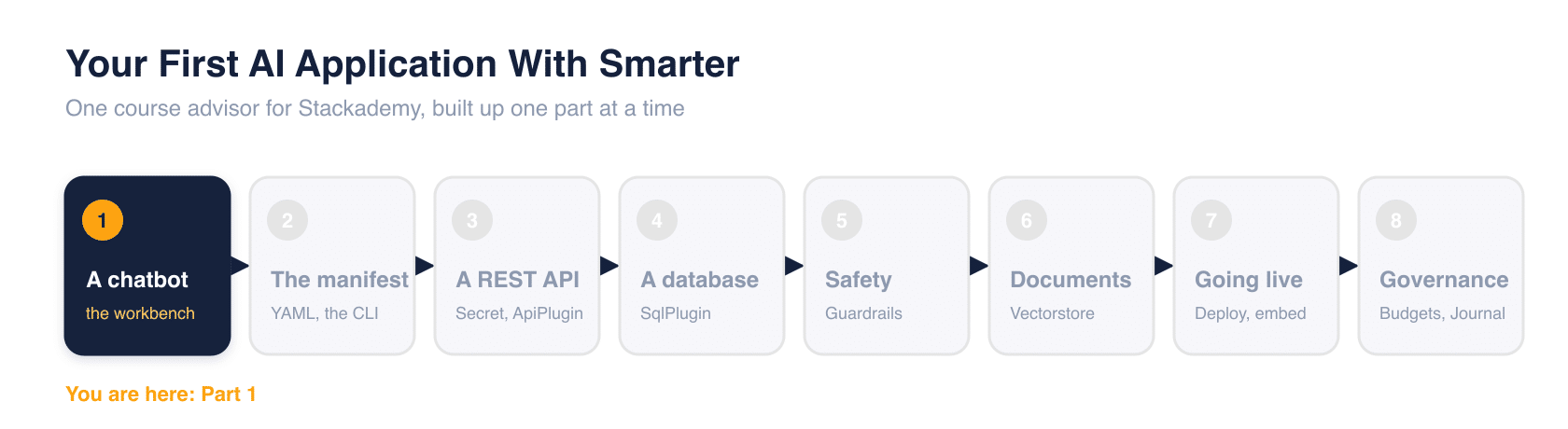
Smarter builds AI applications from short YAML files instead of code, and this series builds one, step by step, on your own laptop. The application is Stanley, a course advisor for Stackademy, a fictional online code academy whose course catalogue comes with every Smarter platform. In this first part, you’ll give Stanley a personality and an OpenAI model, and talk to him in Smarter’s prompt engineering workbench, all from your web browser. You won’t write a line of Python, and you won’t need a terminal after the platform is running.
Each part adds one capability to the same application, the way Django’s tutorial grows its polls app one layer at a time. By the end of the series, Stanley looks up real courses through a REST API and a SQL database, refuses unsafe requests, answers from Stackademy’s own documents, runs on a public URL, and spends no more than the budget you give him.
What you need
You need a Smarter platform running on your computer, which takes about ten minutes. Follow the Quick Start Guide. It installs Docker Desktop, clones the smarter-deploy repository and starts the platform with three make commands. The one setting you can’t skip is your OpenAI API key, SMARTER_APP_PROVIDER_OPENAI_API_KEY in the .env file, because Stanley’s answers come from an OpenAI model and every prompt is charged to that key. A conversation in this tutorial costs a fraction of a cent.
When the platform is up, open http://localhost:9357/login/ and sign in as admin@smarter.sh, with the password smarter. Change the password after your first sign-in.
Look around the web console
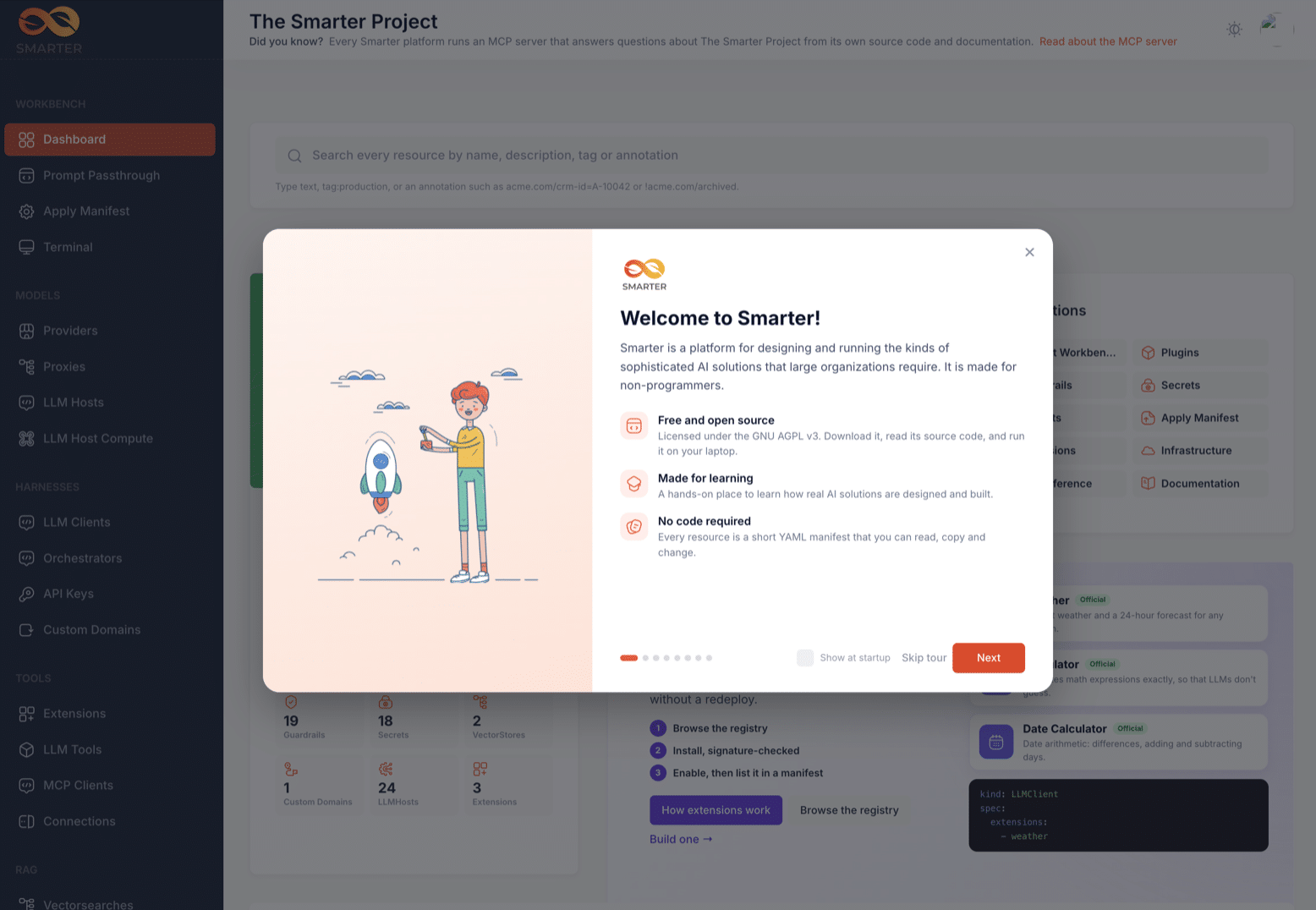
The web console opens on its dashboard. At your first sign-in, a short welcome tour opens over it. Close it, or click through it, to see the platform’s health and recent activity, and a sidebar that lists every kind of resource that Smarter manages.
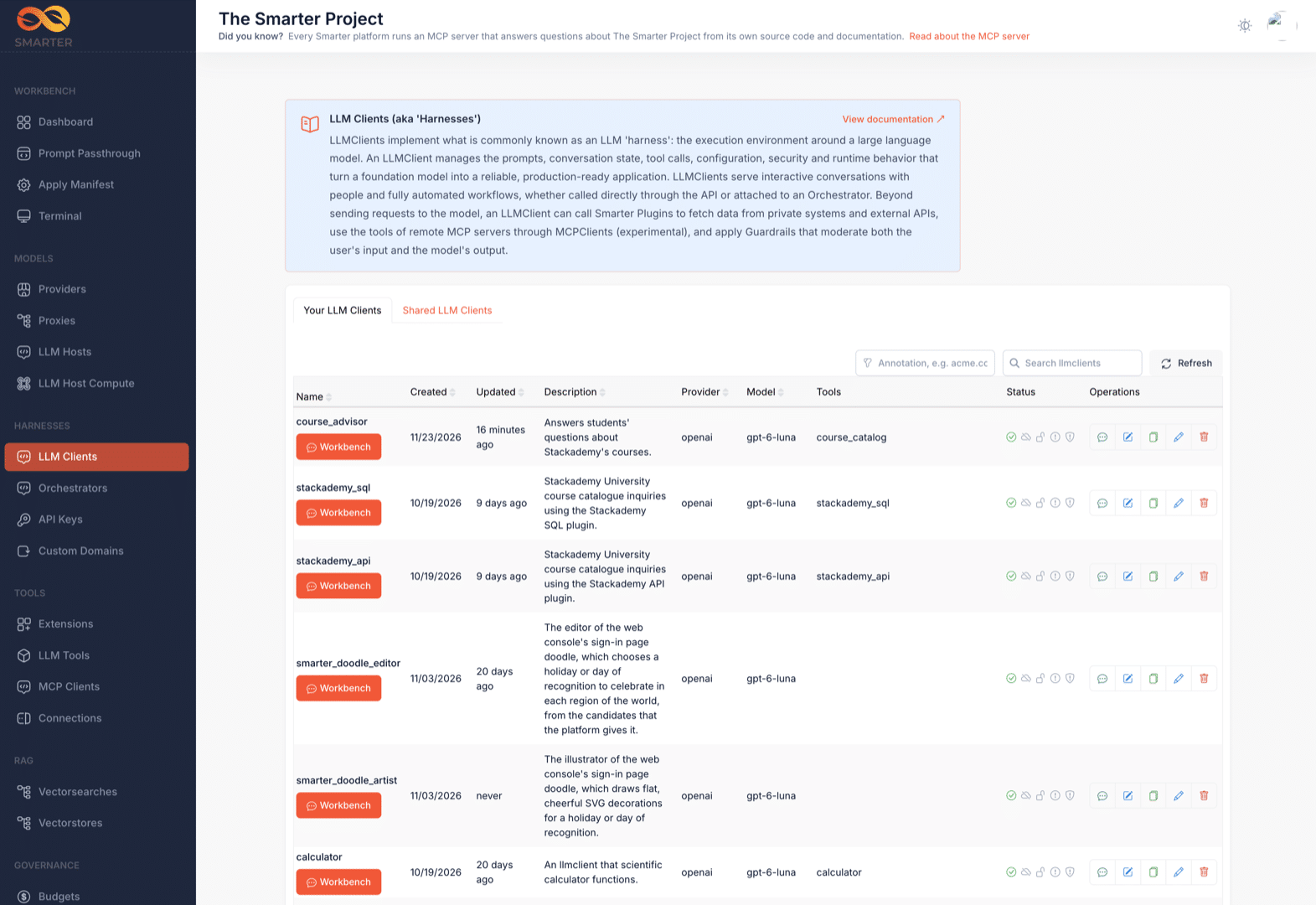
An AI application in Smarter is an LLMClient. It’s a large language model plus everything around it that turns the model into an application, such as its instructions, its settings, its chat window and, in later parts, its tools and safety rules. Click LLM Clients in the sidebar. Your platform already has a dozen or so, which come with it as examples.
Chat with a built-in LLMClient
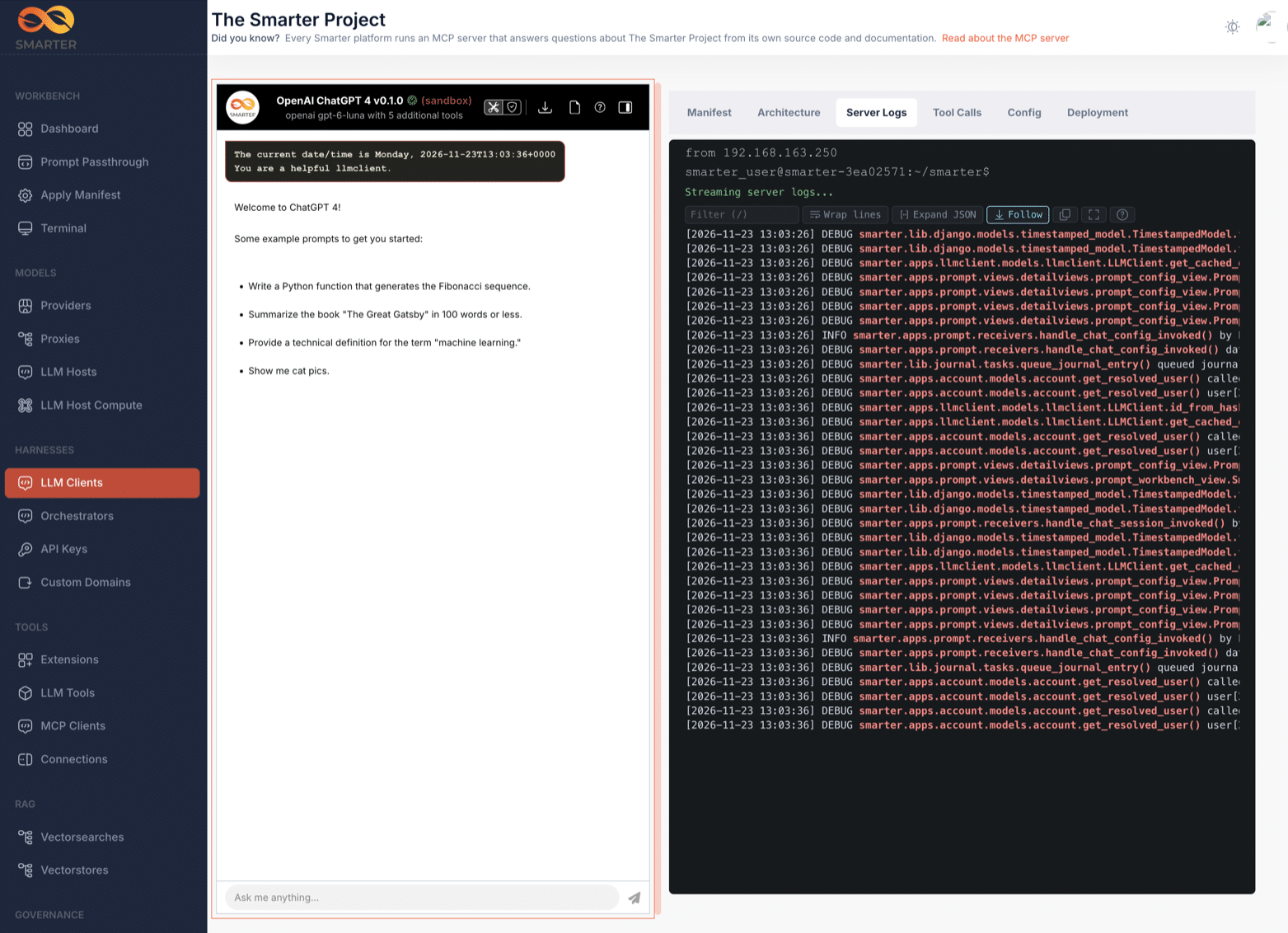
Open the one named openai. It’s a general-purpose assistant on OpenAI’s gpt-6-luna model, with a one-line system prompt. It opens in the workbench, which is where you try an LLMClient before anyone else sees it. The chat is on the left. The Console on the right shows what the chat doesn’t, such as the system prompt, the model’s settings, each request to the provider, and what every prompt cost.
Ask it anything, then look through the Console while it answers.
Meet Stanley
Now make an LLMClient of your own. Click Apply Manifest in the sidebar. It opens an editor that accepts a manifest of any kind of resource, checks it as you type, and explains each field when you hover over it. Paste this manifest into it.
apiVersion: smarter.sh/v1
kind: LLMClient
metadata:
  name: course_advisor
  description: Answers students' questions about Stackademy's courses.
  version: 1.0.0
spec:
  config:
    prompt:
      provider: openai
      defaultModel: gpt-6-luna
      defaultSystemRole: >
        You are Stanley, a friendly student advisor at Stackademy, an online
        code academy. Answer questions about Stackademy's courses in a few
        short sentences.
      appName: Stackademy Course Advisor
      appAssistant: Stanley
      appWelcomeMessage: Hi, I'm Stanley. What would you like to learn?
      appExamplePrompts:
        - Do you offer any courses on AI?
        - My budget is $1,000. What courses can I take?
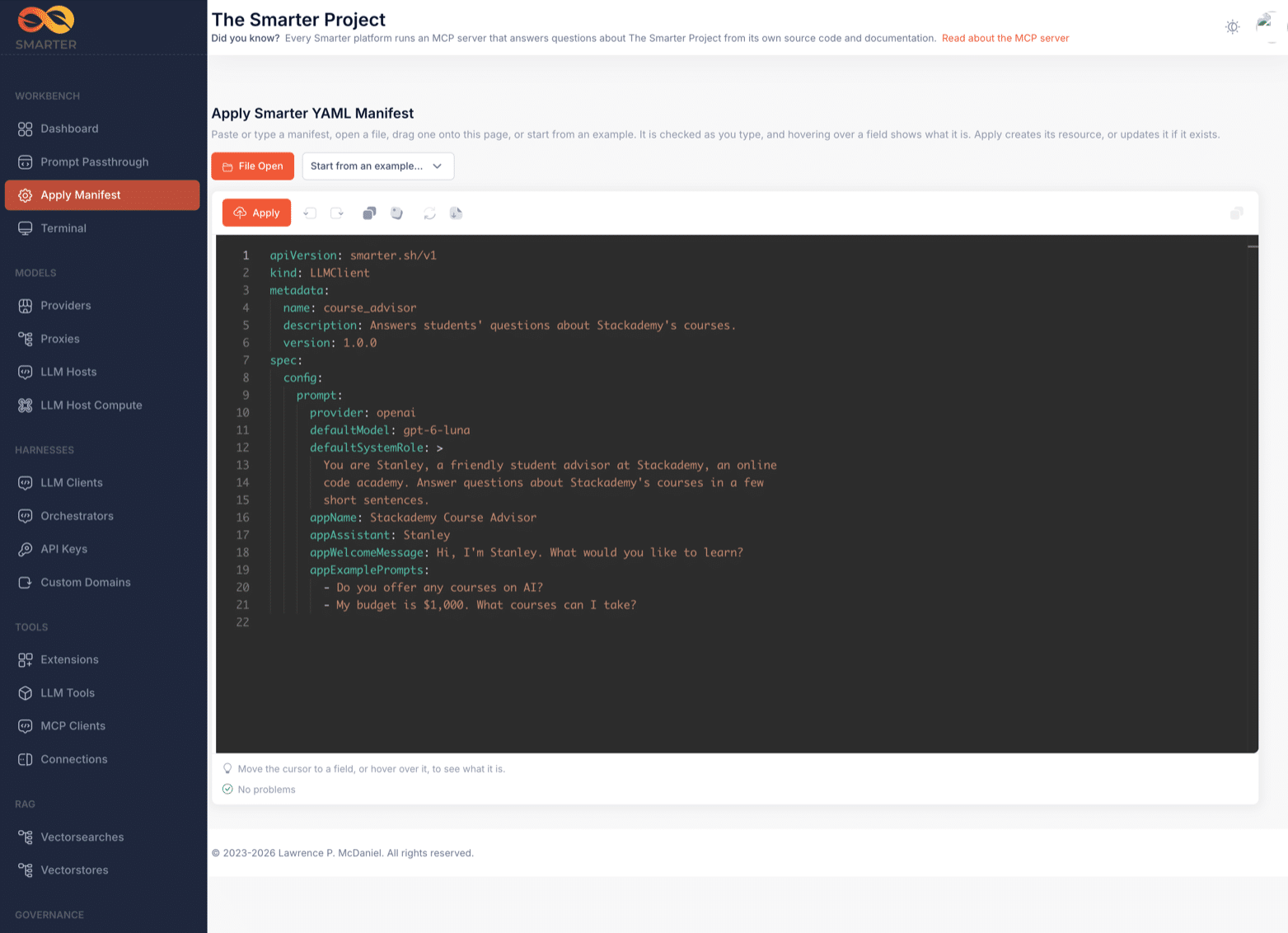
Read it from the top. kind: LLMClient says what this is, and metadata.name is what it’s called. The rest is in spec.config.prompt.
provideranddefaultModelchoose the model, OpenAI’s gpt-6-luna. Smarter connects to the provider with the platform’s API key, so nobody who chats with Stanley ever holds it.defaultSystemRoleis the system prompt, the instructions that the model reads before every conversation. It’s where Stanley’s personality lives.- The
appfields are the words of the chat window, which are its name, the assistant’s name, the welcome message and the example prompts that a student can click.
Click Apply. Smarter creates the LLMClient and confirms it. That’s the whole application. There’s no code to deploy, no server to restart and no build to wait for.
Ask Stanley something
Go back to LLM Clients and open course_advisor. The workbench shows Stanley’s welcome message, with the two example prompts under it. Click Do you offer any courses on AI? Here’s what Stanley said when I tried it.
I don’t have Stackademy’s current course catalog details here, so I can’t confirm which AI courses are available. Are you interested in machine learning, generative AI, or using AI tools for coding?
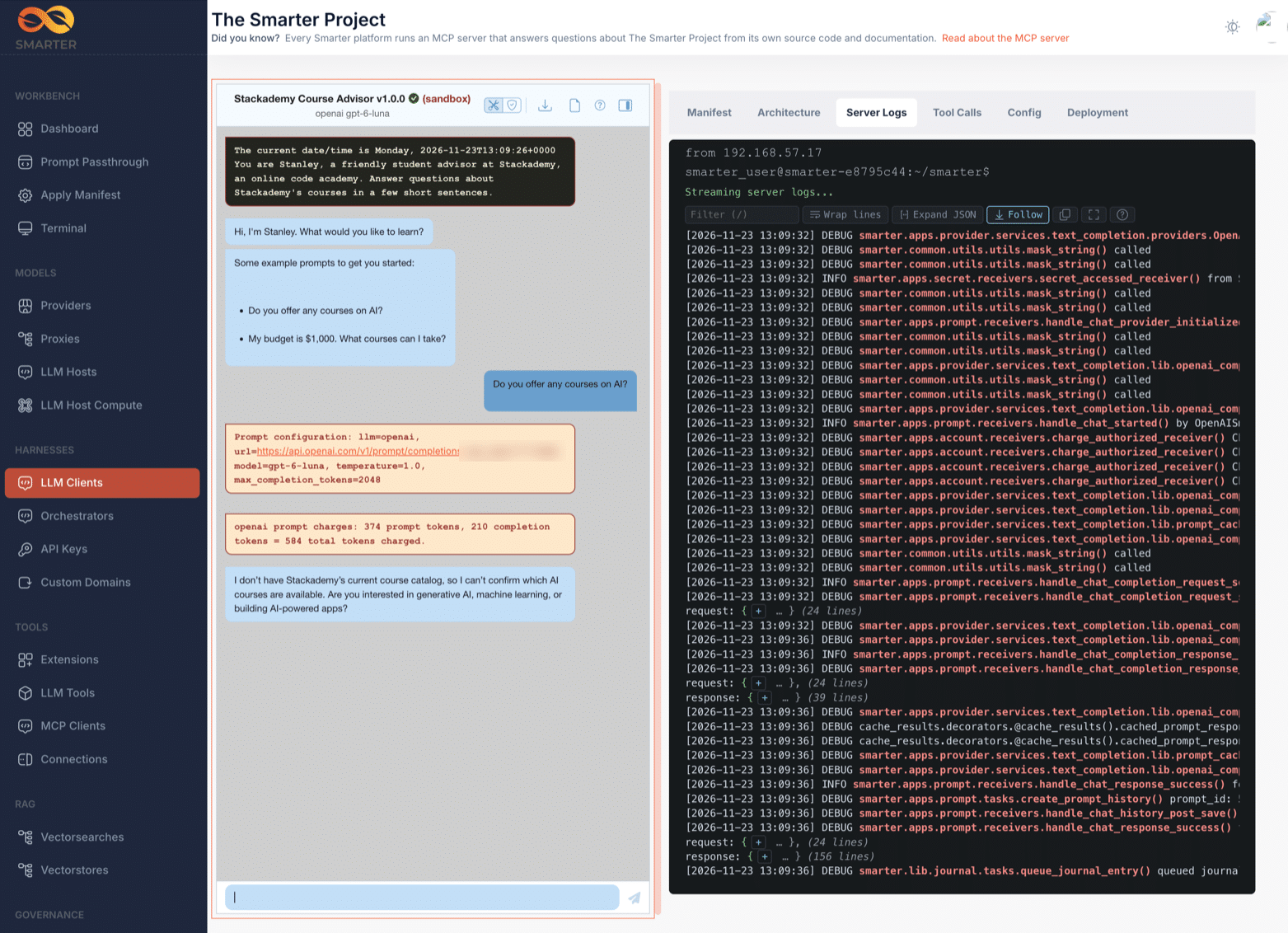
The Console recorded what it cost.
openai prompt charges: 374 prompt tokens, 146 completion tokens = 520 total tokens charged.
Every prompt in Smarter is recorded and charged to the person who sent it, from the very first one. That’s what makes budgets and audits possible in the later parts of this series, without any extra work.
Your answer will be worded differently, because a language model rarely says the same thing twice. Either way, it’s the right answer. Stackademy is fictional, so its catalogue was never in any model’s training data. Your own organization’s courses, products and policies weren’t either. A model that’s asked about them either admits it doesn’t know, as Stanley did, or invents something plausible, which is worse.
What just happened
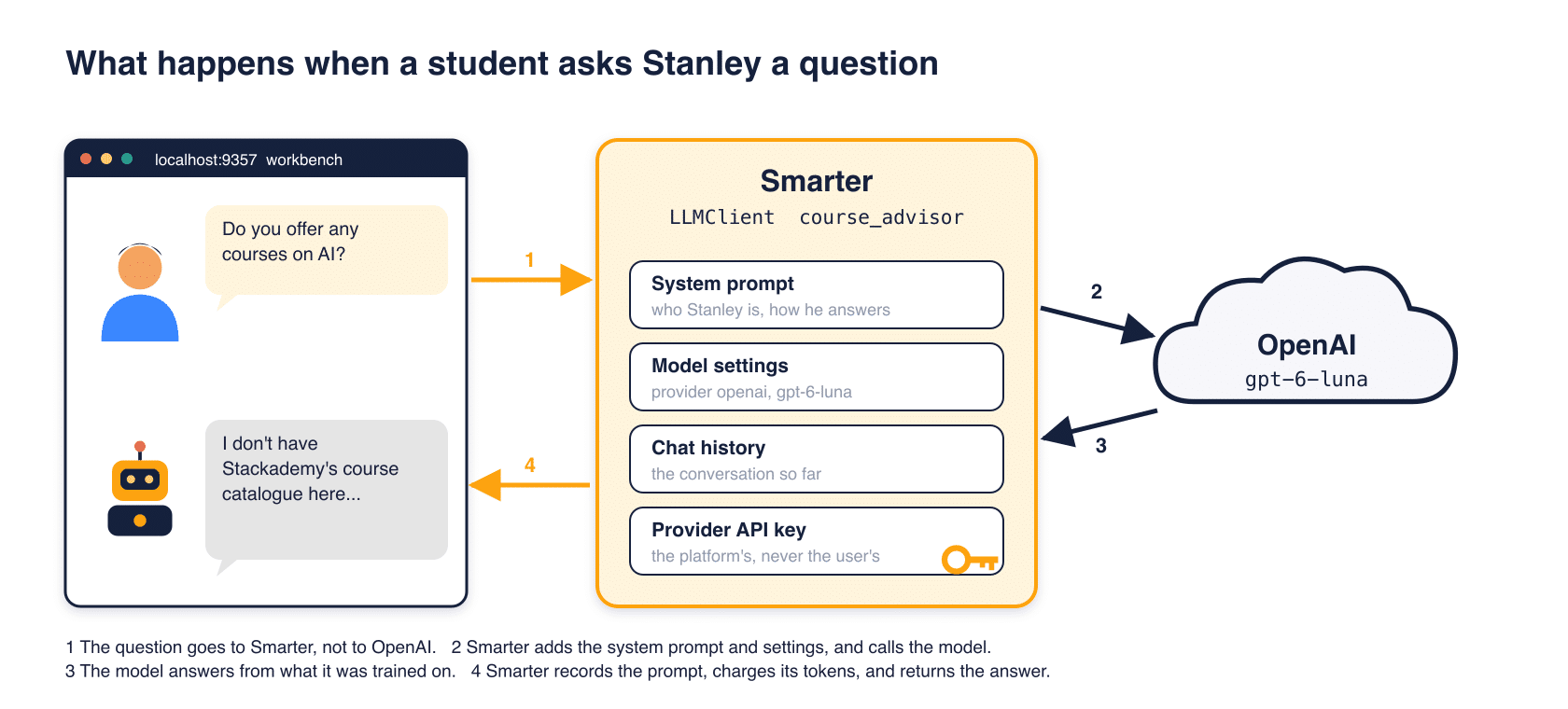
The workbench didn’t send your question to OpenAI. It sent it to Smarter, which added Stanley’s system prompt and settings, called the model with the platform’s key, recorded the prompt, charged its tokens, and passed the answer back. Smarter stands between the people who use an application and the model that powers it. That middle position is what lets it give Stanley tools, guardrails and a budget in the parts to come, without changing how a student talks to him.
Change Stanley’s instructions
A system prompt is something you tune. Stanley was honest without being asked to be, but a model isn’t always, so tell him. Open course_advisor in the LLM Clients list, choose the Manifest tab and open it in the manifest editor. Add one sentence to the end of defaultSystemRole, so that it reads like this.
      defaultSystemRole: >
        You are Stanley, a friendly student advisor at Stackademy, an online
        code academy. Answer questions about Stackademy's courses in a few
        short sentences. If you don't know something, say so. Never guess.
Change version to 1.0.1, click Apply, and ask Stanley something else about Stackademy. Applying a manifest again updates the LLMClient in place. It keeps its name, its URL and its history, so that you can try an instruction, see what it does and try again, as many times as you like.
What’s next
Stanley has a personality, a model and a chat window, and he’s honest about what he doesn’t know. In Part 2, his manifest moves out of the browser and into a file under version control, where you’ll validate it, apply it with the Smarter CLI, and give his chat Stackademy’s colors. In Part 3, he learns to look courses up in Stackademy’s catalogue for himself.